How to Find IMEI2 on iPhone
How to find IMEI2 on iPhone is a common question when an iPhone supports two cellular lines and you need to identify the second device identifier. Unlike the phone number assigned to a SIM or eSIM, IMEI2 identifies the iPhone’s second cellular connection. It can be useful when checking a dual-SIM iPhone, verifying a used device, troubleshooting cellular service, or entering device information into an IMEI checking service.
The important point is that IMEI2 is not the same thing as the EID, ICCID, serial number, or second phone number. If your iPhone displays both IMEI and IMEI2, each number belongs to a cellular connection supported by the device.
This guide explains where to find IMEI2, what it means, what to do if it is not displayed, and how to use the number once you have found it.
What Is IMEI2 on an iPhone?
IMEI2 is the second IMEI associated with an iPhone that supports multiple cellular connections.
An IMEI is a device identifier used to distinguish cellular equipment. A dual-SIM or multi-line iPhone can therefore have more than one IMEI.
You may see identifiers such as:
| Identifier | What it represents |
|---|---|
| IMEI | Primary cellular device identifier |
| IMEI2 | Second cellular device identifier |
| EID | Identifier associated with the eSIM environment |
| ICCID | Identifier associated with a SIM/eSIM subscription |
| Serial Number | Apple’s manufacturer device identifier |
| Phone Number | Number assigned to a cellular service |
These numbers serve different purposes.
If a website, carrier, repair service, or device-checking process specifically asks for IMEI2, do not substitute the EID or ICCID.
The Fastest Way to Find IMEI2
For most supported iPhones, start with the device’s information screen.
Step 1: Open Settings
Open the Settings app on your iPhone.
Step 2: Select General
Tap:
Settings → General
Step 3: Open About
Tap About.
This is the central information page for many of the iPhone’s hardware and cellular identifiers.
Step 4: Scroll Through the Information
Scroll down past the serial number and other device information.
Depending on the iPhone model and cellular configuration, you may see:
- IMEI
- IMEI2
- EID
- ICCID
- Modem Firmware
- Carrier information
If IMEI2 is listed, you can press and hold the number to copy it.
Apple’s current documentation confirms that IMEI and other device identifiers can be found under Settings → General → About.
Why Does an iPhone Have IMEI2?
IMEI2 exists because some iPhones support more than one cellular connection.
This can be particularly relevant when an iPhone uses combinations such as:
- Physical SIM + eSIM
- Two active eSIM lines
- Dual-SIM configurations
- Other supported multi-line cellular arrangements
The exact cellular configuration depends on the iPhone model, region, carrier support, and how the device is configured.
The presence of IMEI2 does not mean that two phone numbers are currently active.
An iPhone can have a second IMEI even when you are not currently using two cellular plans.
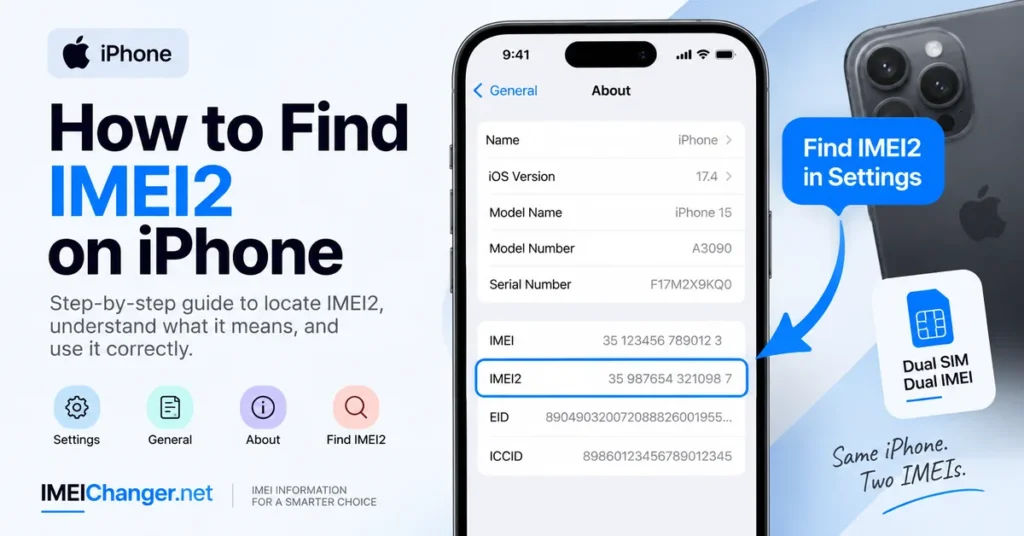
IMEI vs IMEI2: What’s the Difference?
The simplest way to think about the two numbers is that they identify different cellular interfaces on a compatible iPhone.
For example:
IMEI: 123456789012345
IMEI2: 987654321098765
Those are only examples and are not real device identifiers.
If a carrier asks for IMEI2 when activating an eSIM, entering the primary IMEI instead could cause the carrier’s system to associate the service with the wrong cellular identifier.
That is why it is important to copy the exact number requested.
How to Find IMEI2 Before Setting Up an iPhone
There are situations where you need the device identifier before completing the normal iPhone setup.
Apple provides an information option on the initial Hello screen on supported devices.
Turn on the iPhone and wait for the setup screen.
Look for the Info button in the bottom-right corner.
Tapping this can display device identifiers before the phone has been fully configured. Apple’s support documentation identifies this as another way to access device information before completing setup.
This can be particularly useful when:
- You are inspecting a new iPhone.
- You are checking a used iPhone before setting it up.
- You cannot access the normal Settings interface.
- You need device information during activation.
How to Find IMEI2 on a Used iPhone
If you are buying a second-hand iPhone, finding IMEI2 can be part of a broader device inspection.
Do not stop after finding the number.
Compare the information available from the phone with:
- The iPhone model
- Serial number
- IMEI
- IMEI2
- EID
- Original packaging
- Seller-provided information
- Carrier information
- Device activation status
If the information does not appear consistent, ask the seller to explain the discrepancy before completing the purchase.
For a broader device investigation, you can also use our IMEI Lookup Tool to investigate information associated with an IMEI.
How to Find IMEI2 If the iPhone Has No SIM Card
A physical SIM card is not required for an iPhone to have IMEI2.
IMEI2 is associated with the device’s cellular hardware/configuration rather than being printed on the SIM card itself.
Therefore, if you have an iPhone that uses eSIM technology, you can still have an IMEI2 even though there is no physical SIM card installed.
The easiest place to look remains:
Settings → General → About
Then look for IMEI2.
Do not confuse this with the EID displayed on the same information screen.
IMEI2 vs EID on iPhone
This is one of the easiest mistakes to make.
An iPhone can display both IMEI2 and EID, but they are not interchangeable.
IMEI2
IMEI2 is the second IMEI associated with the iPhone’s cellular equipment.
EID
EID is associated with the eSIM environment.
If your carrier specifically requests an IMEI2, give them the IMEI2 shown by the iPhone.
If the carrier requests an EID, provide the EID instead.
Using the wrong identifier can lead to confusion during eSIM activation or device verification.
IMEI2 vs ICCID
ICCID is another identifier that can appear close to IMEI and IMEI2.
The ICCID identifies the SIM/eSIM subscription environment.
It is therefore different from the device’s IMEI.
A useful way to remember the difference is:
IMEI = cellular equipment
IMEI2 = second cellular equipment identifier
EID = eSIM environment
ICCID = SIM/eSIM subscription identifier
Phone number = cellular service number
Keeping these identifiers separate becomes especially important when troubleshooting or activating cellular service.
Can You Find IMEI2 on the iPhone Box?
The original iPhone packaging can contain important device identifiers.
If you still have the original box, check the barcode/device-information label.
However, do not assume that every box will present the information in exactly the same way as the iPhone itself.
For the most reliable current information, compare the packaging with the identifiers shown directly on the device.
Apple also lists original packaging as one of the places where device identifiers can be found.
If you are checking a used iPhone, a mismatch between the phone and its packaging deserves attention.
Find IMEI2 Through Apple Account
If you cannot access the iPhone directly, another option may be available through your Apple Account.
Apple’s current support documentation explains that device information can be viewed by signing in to the Apple Account associated with the device and opening the Devices section.
This can be useful when:
- The iPhone is not currently with you.
- The display is damaged.
- The device cannot be started normally.
- You need to retrieve information from a previously associated device.
The information available can depend on the device and account situation.
Find IMEI2 Using a Mac or PC
You can also connect an iPhone to a computer and use Apple’s device-management software.
Depending on the computer and operating system, Apple documents the use of:
- Finder
- Apple Devices
- iTunes
After connecting the iPhone, select the device and view its available information.
Apple notes that selecting the relevant device information can reveal identifiers including IMEI/MEID and EID.
This method can be especially useful when the iPhone itself is difficult to navigate.
Why Can’t I See IMEI2 on My iPhone?
Not every iPhone configuration will present IMEI2 in the same way.
Possible reasons include:
Your iPhone Does Not Support the Relevant Dual-Line Configuration
The availability of a second IMEI depends on the device’s cellular capabilities and configuration.
Only One Cellular Line Is Being Used
Having only one active cellular plan does not necessarily mean that the device lacks a second IMEI, but the information displayed can vary.
You Are Looking at the Wrong Identifier
You may be seeing:
- IMEI
- EID
- ICCID
- Serial Number
instead of IMEI2.
The Device Information Screen Has Not Been Fully Checked
IMEI2 may appear further down the About page.
Scroll through the entire device-information section rather than stopping after the serial number.
The Device Has a Configuration or Software Problem
If expected cellular identifiers are missing together with other cellular problems, further troubleshooting may be necessary.
What If IMEI2 Is Missing?
If you believe your iPhone should display IMEI2 but cannot find it, first confirm the exact iPhone model and cellular configuration.
Then check:
- Settings → General → About
- The initial setup information screen, if available
- Your Apple Account device information
- Finder, Apple Devices, or iTunes
- Original packaging
If the iPhone is also experiencing cellular problems, such as inability to connect to a network, do not assume that the missing IMEI2 is automatically the cause.
Start by identifying whether the problem concerns the IMEI, IMEI2, EID, ICCID, carrier configuration, SIM/eSIM, or the cellular hardware itself.
Can IMEI2 Be Checked Online?
Yes.
Once you have the correct IMEI2, you can use an appropriate IMEI checking or lookup service.
For example, our IMEI Number Check Online Tool can be used when you want to investigate an IMEI and available device information.
Make sure you enter the correct number.
If a form specifically asks for IMEI2, enter the IMEI2, not:
- EID
- ICCID
- Serial number
- Phone number
- Primary IMEI
Should You Check Both IMEI and IMEI2?
If an iPhone has both identifiers, checking both can be useful when you are evaluating a dual-line device.
This is particularly relevant when:
- Buying a used iPhone
- Activating an additional cellular line
- Investigating network problems
- Comparing device information
- Checking information supplied by a seller
- Troubleshooting a cellular configuration
If you are specifically investigating whether a used phone has a reported or restricted status, use our IMEI Blacklist Checker.
A blacklist check is different from simply locating IMEI2.
What If IMEI and IMEI2 Do Not Match the Box?
Do not immediately try to modify anything.
First determine why the numbers differ.
Possible explanations can include:
- Incorrect packaging
- Device replacement
- Previous repair
- Motherboard replacement
- Seller-provided information being incorrect
- Documentation belonging to another device
If you are buying the phone, pause the transaction until the discrepancy is explained.
The goal is to establish which identifiers actually belong to the device you are holding.
Is IMEI2 the Same as the Second Phone Number?
No.
This distinction matters when using Dual SIM.
For example, an iPhone could have:
IMEI → cellular device identifier
IMEI2 → second cellular device identifier
Phone number → number assigned by the carrier
The phone number can change when a cellular plan changes.
The device’s IMEI identifiers are different types of information.
Can IMEI2 Be Changed?
IMEI2 is a device identifier, not a normal user setting.
You should not treat the IMEI2 field as something that should be manually replaced with another device’s identifier.
If your iPhone has an IMEI-related problem after a legitimate repair, hardware replacement, or service procedure, the correct approach is to diagnose the underlying issue and use appropriate manufacturer, carrier, or authorized repair channels.
Our IMEI Repair Tool guide can provide additional background when you are researching legitimate IMEI-related repair problems.
What Can IMEI2 Be Used For?
IMEI2 can be relevant in several legitimate situations.
eSIM Activation
A carrier may request IMEI2 when setting up an additional cellular line on a compatible iPhone.
Device Verification
A seller, carrier, or service provider may ask for the device’s IMEI information.
Used iPhone Inspection
IMEI2 can be another identifier to compare when checking a second-hand iPhone.
Network Troubleshooting
When investigating a cellular problem, knowing which IMEI is associated with which cellular configuration can help clarify the situation.
Device Identification
IMEI2 can provide another way of identifying the cellular equipment associated with the iPhone.
A Simple IMEI2 Checklist
If you need IMEI2 quickly, use this sequence:
Settings
↓
General
↓
About
↓
Scroll down
↓
Find IMEI2
↓
Press and hold to copy
↓
Use the number only where IMEI2 is requested
If you cannot access the iPhone, check Apple’s supported alternatives such as the Apple Account, computer-based device information, or original packaging.
Common IMEI2 Mistakes
Mistake 1: Using the Primary IMEI
If a carrier asks specifically for IMEI2, do not automatically send the first IMEI you see.
Mistake 2: Sending the EID Instead
The EID is not the IMEI2.
Mistake 3: Sending the ICCID
The ICCID identifies the SIM/eSIM subscription environment and is not a replacement for IMEI2.
Mistake 4: Checking Only the Box
The phone itself should be treated as the primary reference when verifying its current identifiers.
Mistake 5: Publishing the Number Publicly
An IMEI is device-identification information. Avoid posting your complete IMEI or IMEI2 publicly when there is no legitimate reason to do so.
Mistake 6: Assuming IMEI2 Means Two Active Numbers
A second IMEI relates to the device’s cellular capability. It does not automatically mean that two cellular plans are currently active.
Frequently Asked Questions
How do I find IMEI2 on iPhone?
Go to Settings → General → About and scroll through the device information until you find IMEI2, if your iPhone and configuration support it.
Where is IMEI2 on an iPhone?
IMEI2 is normally found on the iPhone’s About screen alongside other device identifiers such as IMEI, EID and ICCID.
Is IMEI2 the same as EID?
No. IMEI2 and EID are different identifiers used for different purposes.
Is IMEI2 the same as ICCID?
No. ICCID identifies the SIM/eSIM subscription environment, while IMEI2 identifies the second cellular device connection.
Does every iPhone have IMEI2?
No. The presence and use of a second IMEI depend on the iPhone’s cellular capabilities and configuration.
Can I find IMEI2 without a SIM card?
Yes. A physical SIM card is not required simply to view the device’s IMEI2 information on a compatible iPhone.
Can I find IMEI2 before activating an iPhone?
On supported devices, you may be able to access device identifiers from the information screen available during initial setup.
Can I find IMEI2 from the iPhone box?
The original packaging may contain device identifiers, but the phone itself is the better reference for confirming the current device information.
Can I find IMEI2 without the iPhone?
If the iPhone is associated with your Apple Account, Apple provides account-based device information that may help you retrieve device identifiers. You may also be able to use a previously connected computer or original packaging.
Should I check IMEI2 before buying a used iPhone?
It can be useful, particularly when the phone supports multiple cellular lines. Compare the identifiers with the phone, packaging, seller information, and other device details.
Can I check IMEI2 online?
Yes. Once you have the correct 15-digit IMEI2, you can use an appropriate IMEI lookup or checking service.
What if my iPhone shows IMEI but not IMEI2?
First confirm the exact iPhone model and cellular configuration. Not every iPhone will display the same identifiers in the same circumstances.
Why does my carrier ask for IMEI2?
A carrier may use IMEI2 when configuring or activating a second cellular line on a compatible iPhone.
Final Answer: Where to Find IMEI2 on iPhone
For most compatible iPhones, the first place to look is:
Settings → General → About
Scroll through the information until you find IMEI2.
If it is not immediately visible, check the other identifiers carefully. Do not mistake EID, ICCID, serial number, or the primary IMEI for IMEI2.
If you are checking a used iPhone, finding IMEI2 is only one part of the process. Compare the device information and, when appropriate, use an IMEI Lookup or IMEI Number Check Online to investigate the identifier.
If the reason you are looking for IMEI2 is that the phone has a reported or restricted status, use the IMEI Blacklist Checker instead of assuming that simply finding the number solves the problem.
The key is to use the exact identifier requested. IMEI, IMEI2, EID and ICCID may appear next to one another on an iPhone, but they are not interchangeable.