
IMEI Search Software: How to Find and Search an IMEI Number
IMEI Search Software is commonly used to describe software or online services that help users find, identify, look up, or investigate an IMEI number associated with a mobile phone or another cellular device.
The IMEI is one of the most important identifiers associated with a cellular device. It can be useful when checking a used phone, identifying a device, investigating network problems, checking blacklist status, or providing information to a carrier or repair professional.
However, an important distinction needs to be made: searching an IMEI, checking an IMEI, repairing an IMEI, changing an IMEI, and unlocking a carrier restriction are different processes.

This guide explains what IMEI search software actually does, how to find your IMEI, how to search an IMEI online, what information may be available, and how IMEI searching differs from IMEI repair, blacklist checking, and network unlocking.
If you are looking for a general IMEI lookup, you can also use our IMEI Number Check Online Tool.
What Is IMEI Search Software?
IMEI Search Software is software or an online service designed to help you find, identify, search, or investigate an IMEI number.
Depending on the software or service, an IMEI search may help you determine information associated with the device identifier.
The information available depends on the database being used. Some services provide basic device information, while others may provide additional information such as model or network-related data where available.
An IMEI search does not automatically mean that the software can change the IMEI or unlock the phone.
| Process | Main Purpose |
|---|---|
| IMEI Search | Finds or searches an IMEI number and associated information. |
| IMEI Check | Investigates information or status associated with an IMEI. |
| IMEI Blacklist Check | Checks whether an IMEI may be reported or restricted. |
| IMEI Repair | Deals with legitimate problems involving a missing, invalid, or corrupted IMEI. |
| Network Unlock | Deals with certain carrier or SIM restrictions. |
| IMEI Change | Attempts to modify a device identifier and is legally restricted or prohibited in some jurisdictions. |
What Is an IMEI Number?
IMEI stands for International Mobile Equipment Identity.
It is a device identifier associated with cellular mobile equipment and is normally represented as a 15-digit number.
The IMEI identifies the device rather than the user’s telephone number or SIM card.
This makes the IMEI useful for device identification, network operations, support, diagnostics, and certain device-status checks.
Your IMEI may be required when contacting a carrier, checking a used phone, reporting a lost or stolen device, or troubleshooting certain cellular problems.
How to Find Your IMEI Number
You do not necessarily need special IMEI search software just to find the IMEI on your phone.
Most modern smartphones provide several built-in ways to display it.
Find IMEI Using *#06#
On many cellular phones, open the Phone application and enter:
*#06#
If supported by the device, the IMEI information should appear on the screen.
This is often the fastest way to find the IMEI.
Find IMEI in Android Settings
On many Android phones, the IMEI can be found under:
Settings → About Phone → IMEI
The exact menu name can vary depending on the manufacturer and Android version.
Find IMEI on an iPhone
On an iPhone, open:
Settings → General → About
Scroll down until you find the IMEI.
For a more detailed iPhone-specific explanation, see our iPhone IMEI Check guide.
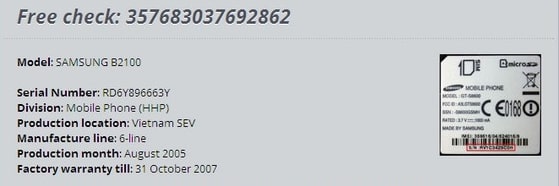
Find IMEI on the Device or Packaging
Depending on the device model, the IMEI may also be printed on:
- The original box
- A device label
- The SIM tray on some models
- Documentation supplied with the device
- The manufacturer’s device information
When buying a used phone, compare the IMEI shown on the device with the IMEI supplied by the seller and the original packaging where appropriate.
How to Search an IMEI Number Online
Once you have the IMEI, searching it online is relatively straightforward.
Step 1: Find the Correct IMEI
Use *#06#, the phone’s settings, the device label, or the original packaging to locate the IMEI.
Step 2: Check the IMEI Carefully
An IMEI is normally 15 digits long.
Make sure every digit is correct before submitting it to an IMEI search service.
A single incorrect digit can produce an incorrect result or cause the search to fail.
Step 3: Use an Appropriate IMEI Search Service
Choose a service that explains what type of information its database can provide.
For a general IMEI lookup and device check, visit our IMEI Number Check Online Tool.
Step 4: Review the Result
Read the complete result instead of assuming that one status word answers every question about the device.
Different IMEI services may use different databases, countries, carriers, and information sources.
Step 5: Verify Important Information
If the result is important, especially when buying an expensive used phone, verify concerning information with the relevant carrier, seller, manufacturer, or another appropriate source.
What Can IMEI Search Software Tell You?
The information available from an IMEI search depends on the service and database.
Depending on the particular service, you may be able to investigate:
| Information | Possible Use |
|---|---|
| IMEI | Confirms the identifier being searched. |
| Device model | Helps identify the phone associated with the IMEI. |
| Manufacturer | May identify the manufacturer associated with the device. |
| Blacklist status | May indicate whether the IMEI appears reported or restricted. |
| Carrier information | May provide available network-related information. |
| Device status | May provide additional information depending on the database. |
Not every IMEI search service provides all of this information.
A trustworthy service should clearly explain what it can actually check instead of claiming that an IMEI automatically reveals every detail about a phone.
IMEI Search Software vs IMEI Checker
The terms IMEI Search and IMEI Checker are often used interchangeably, but they can describe slightly different functions.
An IMEI search may simply look up information associated with the identifier, while an IMEI checker may perform a more structured status or device check.
| Term | Typical Meaning |
|---|---|
| IMEI Search | Searches an IMEI and available associated information. |
| IMEI Lookup | Looks up information associated with an IMEI. |
| IMEI Checker | Checks available device or status information. |
| IMEI Blacklist Checker | Focuses specifically on reported or restricted device status. |
| IMEI Analyzer | May analyze the structure or information represented by an IMEI. |
If you specifically want to determine whether a phone may be blacklisted, read our IMEI Blacklist Checker guide.
IMEI Search Software vs IMEI Repair Tool
An IMEI search tool and an IMEI repair tool solve completely different problems.
Searching an IMEI is an information and lookup process.
IMEI repair is relevant when a device has a legitimate problem such as a missing, invalid, unknown, or corrupted IMEI following certain software, firmware, hardware, or repair issues.
If your phone displays:
- Invalid IMEI
- Null IMEI
- Unknown IMEI
- IMEI not available
- No IMEI
you may have an IMEI-related device problem rather than a simple search problem.
Read our IMEI Fix Tool guide for more information about diagnosing legitimate IMEI problems.
IMEI Search Software vs IMEI Blacklist Checker
Searching an IMEI and checking its blacklist status are related but different tasks.
A general IMEI search may identify information about the device, while a blacklist checker specifically investigates whether the device identifier has been reported or restricted in a relevant database.
If you are buying a used phone, performing both types of checks can be useful.
| Check | Why It Matters |
|---|---|
| IMEI Search | Helps identify available information associated with the device. |
| Blacklist Check | Investigates reported or restricted device status. |
| Carrier Check | Investigates possible network or carrier restrictions. |
| Physical Inspection | Finds damage and hardware problems that an online service cannot detect. |
Can IMEI Search Software Unlock a Phone?
No. Searching an IMEI does not automatically unlock a phone.
This is an important correction to the old information on this page.
A carrier or SIM lock is a separate restriction from the IMEI itself.
A search service can provide information about a device, but simply searching an IMEI does not remove a carrier restriction.
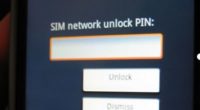
If your phone displays a message such as “SIM Network Unlock PIN” or “Network Unlock Code,” you are dealing with a network-unlocking issue rather than an ordinary IMEI search.
Read our SIM Network Unlock PIN guide for information about this type of restriction.
Does Searching an IMEI Change the IMEI?
No.
Searching, checking, or looking up an IMEI should not modify the device’s IMEI.
The IMEI is simply being used as an identifier for the lookup or checking process.
If software claims that it automatically changes your IMEI merely by searching it, treat the claim with caution.
Searching and changing are completely different operations.
Can IMEI Search Software Find a Lost or Stolen Phone?
An IMEI search may help investigate whether a device identifier has been reported or restricted, depending on the database used.
However, an IMEI search is not a live phone-location service.
Knowing an IMEI does not give a normal public website access to the phone’s GPS location.
If your phone has been lost or stolen, use your manufacturer’s supported device-location and account-security tools and contact your carrier or the appropriate authorities.
Can IMEI Search Software Find the Phone Owner?
An IMEI identifies the device, not the private identity of its owner.
A legitimate public IMEI search should not be assumed to reveal someone’s private account information, passwords, messages, photographs, or other confidential data.
Carrier and manufacturer systems may associate device identifiers with customer accounts, but that does not mean such private information is publicly available through an ordinary IMEI search.
Can IMEI Search Software Show the Phone Model?
Many IMEI databases can associate an IMEI with a manufacturer or device model.
This can be particularly useful when buying a used phone.
For example, if a seller claims to be selling one model but the IMEI lookup identifies a different device family, investigate the discrepancy before purchasing.
However, always verify the model directly on the phone as well.
IMEI Search for Android Phones
Android phones from Samsung, Huawei, Xiaomi, Motorola, Google, OnePlus, Nokia, Sony, and other manufacturers have IMEI numbers associated with their cellular hardware.
On many Android phones, the IMEI can be found under:
Settings → About Phone
You can also try:
*#06#
The exact menu structure depends on the manufacturer and Android version.
If your Android phone does not display an IMEI, do not automatically assume that it is blacklisted.
A missing IMEI is a separate problem that may require troubleshooting.
Read our guide to what to do if an IMEI is not showing on Android.
IMEI Search for iPhone
iPhones also have IMEI numbers that can be used for device identification and appropriate IMEI checks.
On an iPhone, open:
Settings → General → About
and locate the IMEI.
You can then use an appropriate IMEI checking service to investigate available device information.
For a detailed iPhone-specific guide, visit our iPhone IMEI Check Service guide.
How to Check an IMEI Before Buying a Used Phone
One of the most useful applications of IMEI search software is researching a second-hand phone before buying it.
A used phone can look perfect while still having a network restriction, reported device status, account problem, or other issue.
Check the IMEI Directly on the Phone
Ask the seller to show you the IMEI directly from the device rather than relying only on a screenshot or message.
Compare the IMEI With the Packaging
If the original box is available, compare the IMEI shown on the device with the information on the packaging where appropriate.
Run an IMEI Search
Search the IMEI using a reputable service and review the available device information.
Run a Blacklist Check
Use a dedicated blacklist check to investigate whether the device may be reported or restricted.
Our IMEI Blacklist Checker guide explains what clean and blacklisted results mean.
Test the SIM Card
Insert a working SIM and confirm that the phone can connect to the expected network.
Check Activation Status
For an iPhone, make sure the previous owner’s account has been removed and the device can be activated normally.
Inspect the Hardware
Test the display, cameras, speakers, microphones, charging port, buttons, battery, and other important functions.
Why Can Different IMEI Search Services Give Different Results?
Different IMEI services can sometimes provide different information.
This can happen because they may use different:
- Databases
- Carriers
- Countries
- Data providers
- Update schedules
- Device information sources
For example, one service may provide basic model information while another may provide additional carrier or blacklist information.
A missing result does not automatically mean that the phone has no status information.
If the result is important, especially before buying an expensive device, verify it with the relevant carrier or another reputable source.
Is Free IMEI Search Software Reliable?
A free IMEI search service can be useful for basic information, but the word free does not guarantee complete database coverage.
Before relying on a service, consider:
| Question | Why It Matters |
|---|---|
| What information does it actually provide? | Not every service performs the same type of lookup. |
| Which countries are covered? | Carrier and blacklist information can vary by region. |
| How current is the database? | Device status can change over time. |
| Does the service explain its limitations? | Transparent services make it easier to interpret results. |
| Does it ask for unnecessary information? | A basic IMEI lookup should not require unrelated private information. |
Common Problems When Searching an IMEI
The IMEI Search Returns No Result
Check the IMEI digits carefully and try the search again.
If the number is correct, the service may simply lack information for that particular device, country, carrier, or model.
The IMEI Search Shows the Wrong Device
First verify that you entered the correct IMEI.
If the result still identifies a different device, investigate further before purchasing or using the phone.
The IMEI Is Not Showing on the Phone
A missing IMEI is not the same as an IMEI search problem.
Investigate the device’s software, firmware, configuration, repair history, and hardware.
Our IMEI Fix Tool guide provides additional information about invalid, null, or missing IMEI problems.
The IMEI Is Reported as Blacklisted
Do not attempt to hide the device identity simply because the result is negative.
Contact the seller or relevant carrier and determine why the device has been reported or restricted.
For a complete explanation, see our IMEI Blacklist Checker guide.
The Phone Is Locked Even Though the IMEI Search Is Clean
A clean IMEI does not necessarily mean that the phone is carrier unlocked.
Carrier or SIM restrictions are separate from blacklist status and device identification.
If you see a network unlock message, read our SIM Network Unlock PIN guide.
IMEI Search Software Safety Tips
Be careful when downloading unknown software described as an “IMEI Search Tool,” particularly when the software is distributed as an executable file from an unfamiliar website.
Before installing anything, consider:
- Who developed the software?
- Is the download source trustworthy?
- Does the software clearly explain what it does?
- Does it require unnecessary permissions?
- Does it ask for unrelated personal information?
- Does it make unrealistic claims such as 100% success on every device?
- Does it ask you to disable security software?
- Does it ask you to change the device’s IMEI?
Be especially cautious with modified or cracked software distributed through unknown download sites.
Does IMEI Search Software Change the Device?
A normal IMEI search should be a read-only information process.
Searching or looking up an IMEI should not modify the device’s hardware, firmware, network settings, or IMEI.
If software claims that it can search an IMEI and simultaneously change the device identifier, it is performing a completely different operation.
Do not confuse an information lookup with an IMEI modification procedure.
IMEI Search Software and Network Unlocking
IMEI searching and network unlocking are separate processes.
A network lock controls whether a device can use SIM cards from certain carriers.
An IMEI identifies the device.
Searching the IMEI does not automatically remove a network lock.
If you are trying to unlock a device because it displays a network unlock message, use a model- and carrier-specific unlocking method rather than assuming that an IMEI search will solve the problem.
For more information about network unlock messages, read our SIM Network Unlock PIN guide.
Frequently Asked Questions About IMEI Search Software
What is IMEI Search Software?
IMEI Search Software is software or an online service designed to find, search, look up, or investigate an IMEI number and available information associated with the device.
How do I search an IMEI number?
Find the IMEI using *#06#, the phone’s settings, the device label, or original packaging and submit the number to an appropriate IMEI search or checking service.
Can I search an IMEI online for free?
Yes, some services offer free IMEI searches. However, the amount of information and database coverage can vary considerably between services.
Can IMEI search software unlock my phone?
No. Searching an IMEI does not automatically remove a carrier or SIM restriction. Network unlocking is a separate process.
Can IMEI search software change my IMEI?
A normal IMEI search does not change the IMEI. Searching and modifying a device identifier are completely different operations.
Can I find a phone’s location with its IMEI?
No. An ordinary IMEI search is not a real-time GPS tracking service. If your phone is lost, use the manufacturer’s supported location and account-security features and contact your carrier.
Can an IMEI search reveal the owner’s name?
A legitimate public IMEI search should not be assumed to reveal private owner information. The IMEI identifies the device, not the owner’s private account details.
Can an IMEI search tell me the phone model?
Many databases can associate an IMEI with a manufacturer or model, although the exact information depends on the service and database.
Why does my IMEI search show no information?
The database may not contain information for your device, country, carrier, or model. First make sure the IMEI was entered correctly.
What if my IMEI is blacklisted?
Contact the seller or relevant carrier and determine why the device has been reported or restricted. A blacklist check is not a legitimate method for changing the device’s identity.
What if my IMEI is missing?
A missing IMEI can indicate a separate device or software problem. Read our IMEI Fix Tool guide for troubleshooting information.
What is the difference between IMEI search and IMEI blacklist check?
An IMEI search looks up available device information, while an IMEI blacklist check specifically investigates whether the identifier may have been reported or restricted.
Should I search the IMEI before buying a used phone?
Yes. An IMEI search and blacklist check are useful parts of a used-phone inspection, along with checking activation status, carrier compatibility, ownership, physical condition, and cellular connectivity.
Final Thoughts
IMEI Search Software can be useful when you need to find, search, or investigate an IMEI number associated with a mobile phone or another cellular device.
The most important thing is to understand what an IMEI search actually does.
An IMEI search can provide available device information, but it does not automatically unlock a carrier restriction, remove a blacklist, track a phone’s live location, or change the device’s IMEI.
If you want to perform a general IMEI lookup, use our IMEI Number Check Online Tool.
If you need to investigate whether a phone is reported or blacklisted, read our IMEI Blacklist Checker guide.
If your phone has an invalid, null, or missing IMEI, see our IMEI Fix Tool guide.
If you are checking an iPhone specifically, visit our iPhone IMEI Check Service guide.
If your device displays a SIM or network unlock message, read our SIM Network Unlock PIN guide.
For the best results, use the right tool for the right problem: search the IMEI when you need information, check the blacklist when you need device-status information, and troubleshoot the actual cause when the phone has a network or IMEI problem.
Updated: August 29, 2026