
How to Find IMEI2 on Android
How to find IMEI2 on Android depends on the phone’s manufacturer, SIM configuration, and Android version. On a Dual SIM or eSIM-compatible device, IMEI2 may appear alongside IMEI1 in the phone’s device information, but it is not always displayed in exactly the same place. If your carrier has asked for “IMEI 2” specifically, finding the second identifier—not simply any IMEI—is important.
The good news is that you usually do not need a special application to find it. Android phones provide several ways to locate their device identifiers, including the About Phone section, the *#06# code, the original box, and manufacturer-specific services.
The Quickest Way to Find IMEI2 on Android
Start with the phone itself.
Open:
Settings → About Phone
Look for a section containing terms such as:
- IMEI
- IMEI 1
- IMEI 2
- IMEI (SIM slot 2)
- SIM status
- Device information
- Phone information
The exact wording depends on the manufacturer and software version.
On Google Pixel devices that support two SIM connections, Google specifically identifies the second identifier as “IMEI (SIM slot 2)” when the relevant Dual SIM configuration is enabled.
If you see both numbers, you can identify them as:
IMEI 1 → first cellular connection
IMEI 2 → second cellular connection
Do not assume that IMEI2 is the same thing as the EID. They are different device identifiers.
Method 1: Find IMEI2 Through Android Settings
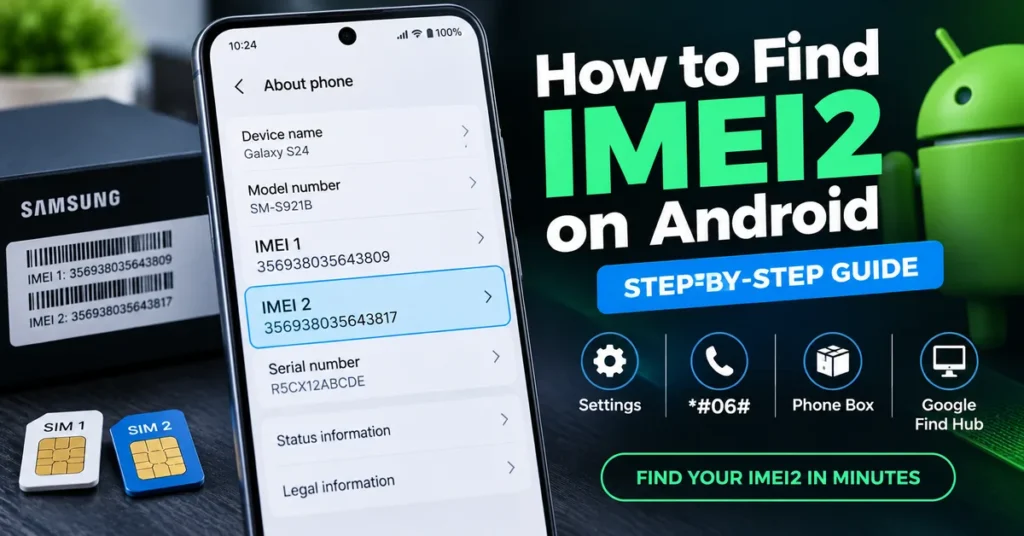
For most Android phones, Settings is the best starting point because it shows information directly associated with the device.
Try this path:
Settings → About Phone → IMEI / Status / SIM Status
Depending on the manufacturer, you may need to open another menu inside About Phone.
For example, some phones may place the information under:
Settings → About Phone → Status
while others may display the IMEI information immediately after opening About Phone.
If your phone has two cellular connections, look specifically for a second entry.
You may see something similar to:
IMEI 1: 123456789012345
IMEI 2: 123456789012352
The numbers above are only examples. Your actual IMEI should always be taken directly from your device.
Why the Menu May Look Different
Android is not a single identical interface across every manufacturer.
Samsung, Google Pixel, Motorola, Xiaomi, OnePlus, OPPO, vivo and other manufacturers can organize device information differently. Android version, regional firmware and the phone’s cellular configuration can also affect what appears on screen.
Therefore, if you do not see an option called exactly IMEI2, that does not automatically mean your phone does not have a second IMEI.
Method 2: Use *#06# to Display the IMEI Numbers
Another quick method is the Android dialer.
Open the Phone application and enter:
*#06#
On supported devices, a device-information screen should appear showing the available IMEI information.
If your phone has two cellular identifiers, you may see:
- IMEI 1
- IMEI 2
or equivalent labels.
This method is particularly useful when you want to confirm the IMEI without navigating through several Settings menus.
However, the exact behavior of *#06# can vary by manufacturer, carrier and device software. If the code does not display the second IMEI, use the Settings method instead.
Method 3: Find IMEI2 on a Google Pixel
Google Pixel phones provide one of the clearest examples of why IMEI2 exists.
Pixel phones that support both a physical SIM and eSIM can use two IMEIs. Google explains that IMEI1 is usually associated with the first SIM configured on the phone, while IMEI2 can be required when setting up the second SIM connection.
On supported Pixel configurations, the process can be:
Settings → About Phone → IMEI (SIM slot 2)
Google also notes that IMEI2 may be requested by a carrier when activating an eSIM for Dual SIM Dual Standby.
If the second IMEI is not visible, check whether the required Dual SIM configuration is enabled on your particular Pixel model.
IMEI2 Is Not the EID
Pixel phones can display several identifiers that may look confusing at first.
For example:
- IMEI 1 — cellular device identifier for one connection
- IMEI 2 — second cellular device identifier
- EID — identifier associated with the eSIM environment
- Serial number — manufacturer’s device identifier
If your carrier asks for IMEI2, do not send the EID simply because both appear in the same device-information area.
Method 4: Find IMEI2 on a Samsung Galaxy
Samsung Galaxy phones generally provide IMEI information through:
Settings → About phone
Depending on the model and software version, additional device information may appear in another status or information section.
You can also try:
Phone app → *#06#
Samsung states that supported Galaxy devices can display IMEI information through Settings and the *#06# code, although the exact screens can vary by model, carrier and software version.
If your Galaxy is a Dual SIM model, look for separate identifiers associated with the two SIM connections.
A Samsung phone may therefore show two IMEIs even though you are looking at one physical smartphone.
Method 5: Check the Original Android Phone Box
If the phone is difficult to access, check the original packaging.
Manufacturers commonly place device identification information on a label near the barcode.
Depending on the phone, the box may show:
- IMEI 1
- IMEI 2
- Serial number
- Model number
- EID
- Other product information
This can be particularly useful if the phone’s display is damaged or you cannot access Android Settings.
However, if you are buying a used phone, do not rely on the box alone.
Compare the identifiers printed on the packaging with the identifiers shown by the actual device whenever possible.
A mismatch deserves investigation before you complete a purchase.
Method 6: Use Google Find Hub When You Cannot Open the Phone
If you cannot access the Android device directly, Google’s device-management system may provide another route to the IMEI.
Google’s Android support documentation explains that the device’s IMEI can be accessed through Find Hub for supported devices.
This can be useful when:
- The phone is lost
- The screen is damaged
- The device cannot be comfortably navigated
- You need the IMEI for carrier or device-related purposes
The information available can depend on the device and account configuration.
If you are trying to recover the identifier of your own phone, this can be more useful than installing an unknown third-party IMEI application.
Why Can’t I See IMEI2 on My Android Phone?
This is one of the most common points of confusion.
Having a phone that supports Dual SIM does not guarantee that every Android screen will always display IMEI2 in the same way.
There are several possible reasons.
1. Your Phone Has Only One IMEI
Not every multi-SIM architecture necessarily exposes two IMEIs in the same way.
Some devices can support multiple SIM configurations while using a single IMEI architecture, while other devices use separate IMEIs for separate simultaneous cellular connections.
The hardware and cellular architecture determine what identifiers the device uses.
2. The Second SIM Configuration Is Not Active
On some devices, the second IMEI becomes easier to identify after the second SIM/eSIM functionality has been configured or enabled.
This is particularly relevant on certain Pixel configurations.
3. The Manufacturer Uses Different Labels
Your phone may not literally say:
IMEI2
Instead, look for terminology such as:
- IMEI (SIM 2)
- IMEI 2
- IMEI slot 2
- SIM 2 IMEI
- Second IMEI
4. Your Phone Uses an eSIM
An eSIM can make the identification screen more complicated because several identifiers may appear together.
Do not confuse:
IMEI2 ≠ EID
The EID identifies the eSIM environment, while the IMEI identifies cellular equipment.
5. Software or Firmware Problems
If the phone previously displayed two IMEIs and one suddenly disappeared, that is different from simply not knowing where to find it.
A missing IMEI can sometimes be associated with firmware, modem, configuration, storage or hardware problems.
If the IMEI is showing as Unknown, Null, Invalid, blank or 0, investigate the underlying problem rather than assuming you simply need another lookup method.
For more information, see our IMEI Repair Tool guide.
IMEI2 vs EID: Don’t Enter the Wrong Number
One of the easiest mistakes to make when activating an eSIM is confusing IMEI2 with EID.
They serve different purposes.
| Identifier | What it represents |
|---|---|
| IMEI1 | First cellular device identifier |
| IMEI2 | Second cellular device identifier |
| EID | eSIM-related device identifier |
| ICCID | SIM/eSIM subscription identifier |
| Serial number | Manufacturer’s device identifier |
If your carrier specifically asks for IMEI2, provide the second IMEI.
If it asks for an EID, provide the EID.
Do not substitute one for another.
When Does a Carrier Ask for IMEI2?
IMEI2 can become important when activating or configuring a second cellular connection.
For example, a carrier may ask for IMEI2 when:
- Activating an eSIM
- Setting up Dual SIM
- Registering a second cellular connection
- Checking device compatibility
- Troubleshooting a second SIM connection
- Provisioning a supported device
The carrier determines which identifier it needs.
If the carrier says “Enter IMEI2”, don’t simply send the first IMEI because it is the one you can see most easily.
How to Verify That You Have the Correct IMEI2
If you have located two IMEIs, verify them before using one for an activation or device check.
A simple process is:
Step 1: Check Android Settings
Open:
Settings → About Phone
Record the IMEI entries.
Step 2: Try *#06#
Enter:
*#06#
Compare the numbers shown there with the Settings screen.
Step 3: Check the SIM Configuration
Look at which SIM or eSIM is associated with the second cellular connection.
Step 4: Compare With the Box if Available
If you still have the original packaging, compare its device identifiers with the phone.
Step 5: Use the Correct Number for the Requested Task
If a carrier asks for IMEI2, provide IMEI2.
If you are checking the second cellular identifier of a used phone, record both IMEI1 and IMEI2 rather than keeping only one.
Should You Check Both IMEI Numbers on a Dual-SIM Phone?
If you are buying a used Dual SIM phone, checking both can be worthwhile.
A phone with two cellular identifiers effectively gives you two IMEI values to keep track of.
For example:
IMEI1 → first cellular connection
IMEI2 → second cellular connection
If you only check one number, you may not have investigated the second cellular identifier.
You can use our IMEI Lookup Tool to investigate available information associated with an IMEI.
If you are specifically concerned about whether a device has a reported or restricted status, use our IMEI Blacklist Checker as a separate check.
What If IMEI1 Works but IMEI2 Does Not?
This situation needs to be separated into two very different cases.
Case 1: IMEI2 Is Present but the Second SIM Does Not Work
If Android clearly displays IMEI2 but the second SIM or eSIM cannot connect, the problem may involve:
- Carrier activation
- SIM provisioning
- Network compatibility
- SIM configuration
- eSIM activation
- Carrier restrictions
- Software problems
In this situation, the existence of IMEI2 does not prove that the second connection is correctly activated.
Case 2: IMEI2 Is Missing or Invalid
If IMEI2 itself is missing, blank, unknown or invalid, investigate the device before making further changes.
Do not assume that installing a random “IMEI2 fixer” application will solve the problem.
The correct troubleshooting path depends on the exact phone model, chipset, firmware and circumstances that caused the identifier to disappear.
Can an IMEI2 Be Different From IMEI1?
Yes.
IMEI1 and IMEI2 are separate identifiers associated with the device’s cellular connections.
They are not supposed to be identical.
You may therefore see something like:
IMEI1: 15-digit identifier
IMEI2: another 15-digit identifier
The fact that the numbers are different is normal.
They still belong to the same physical smartphone.
For a deeper explanation of why one phone can have two identifiers, see our guide Why Does My Phone Have Two IMEI Numbers? if that article is already published on the site.
Can IMEI2 Be Used for an IMEI Lookup?
Yes.
IMEI2 is still an IMEI and can be entered into an appropriate IMEI lookup service when you need to investigate that particular cellular identifier.
The important part is knowing which IMEI you are checking.
If a Dual SIM phone has:
- IMEI1
- IMEI2
you should not assume that checking IMEI1 automatically tells you everything about IMEI2.
For device identification and available technical information, use the correct number associated with the connection you are investigating.
What About the TAC in IMEI2?
IMEI2 follows the same basic IMEI structure as an IMEI1.
The first eight digits form the TAC (Type Allocation Code), which is used to identify the device type or model family.
This means IMEI1 and IMEI2 can provide useful model-level clues through their TAC portions.
However, the TAC does not identify the individual physical phone by itself.
If you want to understand the first eight digits in more detail, see our guide:
What Is a TAC Number? How TAC Identifies a Phone
Finding IMEI2 on Android When the Screen Is Broken
A broken display does not necessarily mean the IMEI2 is permanently inaccessible.
Depending on your device and account setup, try:
- Original phone packaging
- Purchase documentation
- Carrier records
- Google Find Hub
- Manufacturer account or device-management services
- Repair documentation
Samsung, for example, provides several ways to retrieve device identification information through supported Samsung services and registered-device information.
If you are dealing with your own device, use manufacturer or carrier-supported methods rather than random websites asking for account credentials.
Do You Need an App to Find IMEI2?
Usually, no.
Installing an unknown IMEI application is generally unnecessary just to locate a number that Android or the manufacturer already provides.
Start with:
Settings → About Phone
Then try:
*#06#
If neither method provides the expected information, check the original packaging or manufacturer-supported account/device services.
A third-party app should not be your first choice for something as basic as retrieving a device identifier.
What If IMEI2 Does Not Match the Box?
If the phone displays one IMEI2 while the original packaging shows another, stop and investigate.
Possible explanations can include:
- The box belongs to a different device
- The phone was replaced
- A motherboard or major hardware component was changed
- Previous repair work occurred
- Documentation is incorrect
- The device has a more complicated service history
This does not automatically prove that the phone is stolen or fraudulent.
But if you are buying a used device, an unexplained identifier mismatch is a reason to ask questions before paying.
Finding IMEI2 Before Buying a Used Android Phone
For a second-hand Dual SIM Android phone, you can make the IMEI check part of the inspection process.
Before purchasing, consider recording:
- IMEI1
- IMEI2
- Serial number
- Model number
- EID if the phone uses eSIM
- Device condition
- Carrier/network compatibility
- Account-lock status
- Blacklist/device status
Then compare the information against the seller’s documentation where available.
You can use our IMEI Lookup Tool to investigate the available device information and our IMEI Blacklist Checker for a separate blacklist-status check.
An IMEI check should be part of the inspection—not the entire inspection.
Frequently Asked Questions
How do I find IMEI2 on Android?
Start with Settings → About Phone and look for IMEI 2, IMEI (SIM slot 2), or similar wording. You can also try *#06# on supported devices.
Where is IMEI2 on Samsung?
On many Samsung Galaxy phones, open Settings → About phone. You can also try *#06#. The exact menu can vary by model and software version.
How do I find IMEI2 on Google Pixel?
On supported Pixel phones, open Settings → About Phone and look for IMEI (SIM slot 2). Google notes that IMEI2 may be required when setting up an eSIM for Dual SIM use.
Why is IMEI2 not showing on my Android phone?
The phone may not use a two-IMEI configuration, the second SIM configuration may not be active, the manufacturer may use different terminology, or there may be a software, firmware or device-identification problem.
Is IMEI2 the same as EID?
No. IMEI2 is a second IMEI associated with a cellular connection. EID is associated with the eSIM environment.
Can I find IMEI2 without turning on the phone?
Sometimes. Check the original box, purchase records, carrier information, manufacturer account services, or supported device-management services.
Does every Dual SIM Android phone have two IMEIs?
No. Multi-SIM architectures can differ. Some devices use multiple IMEIs, while other architectures can support multiple SIM configurations differently.
Should I check IMEI1 and IMEI2?
If you are investigating a Dual SIM device—especially before buying it—checking both identifiers can provide a more complete picture of the phone’s cellular configuration and status.
Final Takeaway
The most reliable starting point for finding IMEI2 on Android is the phone’s own device-information screen.
Try:
Settings → About Phone
If that does not make the second identifier obvious, try:
*#06#
For Pixel devices, look specifically for IMEI (SIM slot 2) when the relevant Dual SIM configuration is enabled. Samsung and other Android manufacturers may use different menus or labels.
If IMEI2 is missing entirely, first determine whether the phone actually uses a two-IMEI architecture. If it previously had a valid second IMEI and now shows Unknown, Null, Invalid or blank, treat that as a potential device-identification problem rather than simply a hidden setting.
And when you find both IMEIs, keep them separate. IMEI1 and IMEI2 belong to the same phone, but they are different identifiers and may be requested for different cellular connections.