How To Share Data From iPhone To iPhone With iTunes Or Finder
This guide is on how to share data from iPhone to iPhone with iTunes or finder. You need to know that there are many other possibilities and methods, but in this case, we will explain just how to share data from iPhone to iPhone with iTunes or finder!
Share Data From iPhone To iPhone With iTunes Or Finder
iTunes or Finder provides an ideal platform for consumers to transfer data from one iPhone to another in a few easy steps. All of your data, as well as the material you’ve purchased, may be transferred to your new iPhone.
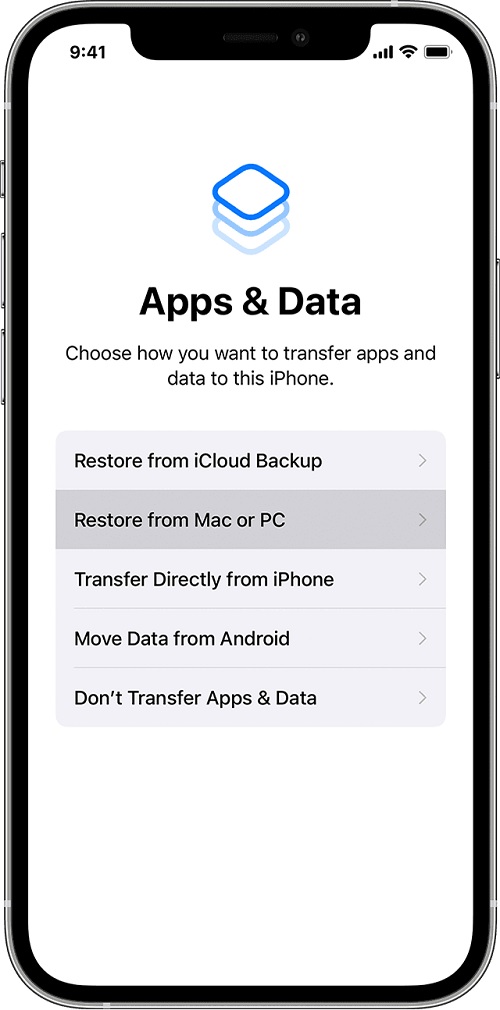
This procedure consists of restoring your iTunes library to your new iPhone device. It’s important to remember, however, that if you haven’t encrypted your iTunes backup, iTunes won’t be able to upload your health and activity data. The methods below will show you how to transfer data from your old iPhone to your new iPhone using iTunes.
- Turn on your new iPhone for the first time. The “Hello” screen should appear. If you’ve already set up your new iPhone, simply delete it before proceeding to the next step.
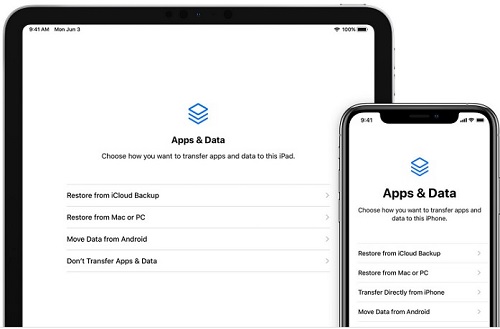
- Follow the on-screen prompts until you reach the “Apps & Data” panel. Choose “Restore from Mac or PC” from the drop-down menu.
- Connect your new iPhone to the computer where you backed up your old iPhone. Start iTunes and select your device.
- Select the correct backup from the “Restore Backup” menu. You can choose which backup to restore based on the date and size of the backup. You’d be prompted to enter the right password if the backup was encrypted. Make certain that you do so.
- Wait patiently for the restoration procedure to finish. Finish the remaining setup instructions on your new iPhone after it’s finished.
If you complete the 5 steps above, then you will complete the moving data procedure successfully! Good luck and have fun with your Apple iPhone device!