How to Find EID Number on iPhone
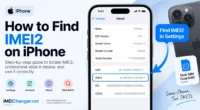
How to find EID number on iPhone is usually much easier than it first appears. On a compatible iPhone, the EID is listed with the device’s other identifiers, including the IMEI, IMEI2 and ICCID. The quickest route is Settings → General → About, where you can view and copy the EID directly from the device.
The confusing part is not finding the number—it is knowing which number is actually the EID. An iPhone can display several long identification numbers on the same screen, and they are used for different purposes.
If a carrier asks you for an EID during eSIM activation, for example, sending the IMEI or ICCID instead will not accomplish the same thing.
This guide shows exactly where to find the EID on an iPhone, including options for situations where you cannot open the Settings app.
Where Is the EID Number on an iPhone?
The primary location is:
Settings → General → About
Once you open About, scroll down through the device information.
Depending on your iPhone model and configuration, you may see entries such as:
- Serial Number
- IMEI
- IMEI2
- EID
- ICCID
- Modem Firmware
- SEID
The EID is the identifier you are looking for.
Apple’s documentation confirms that EID and other device identifiers can be found in the iPhone’s About section.
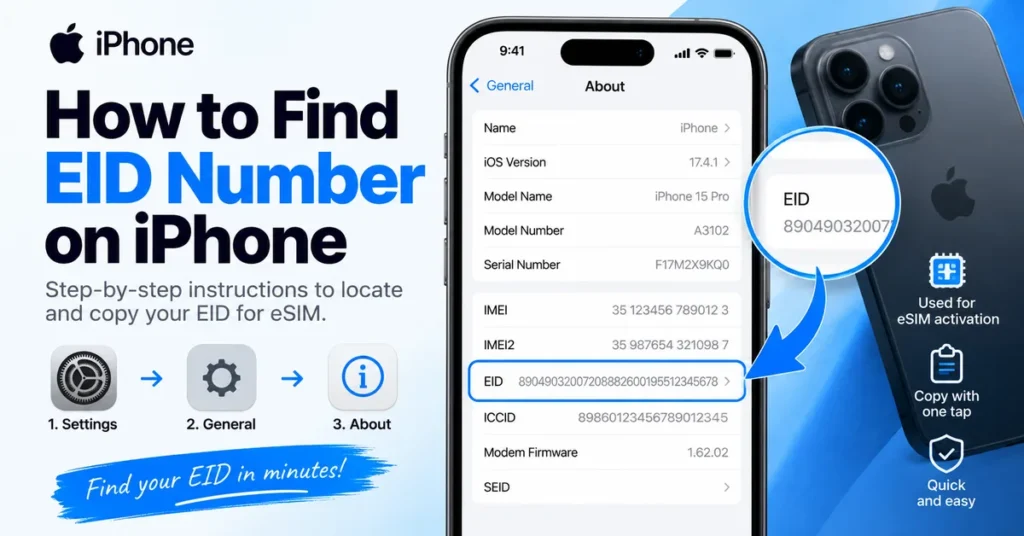
How to Find EID Number on iPhone Step by Step
You do not need an additional app or an online tool to find the EID on a normally functioning iPhone.
Step 1: Open Settings
Find the Settings app on your iPhone and open it.
Step 2: Tap General
Scroll down and select:
General
Step 3: Select About
At the top of the General menu, tap:
About
This page contains a large amount of information about your iPhone.
Step 4: Scroll to EID
Move down the page until you see:
EID
The number beside it is your iPhone’s EID.
Step 5: Copy the EID
If you need to send the number to your carrier or eSIM provider, touch and hold the EID and use the copy option.
This is preferable to typing the number manually because EIDs are long and a single incorrect digit can cause problems during activation.
What Does the EID Look Like on an iPhone?
An EID is much longer than an IMEI.
An iPhone may show something similar to:
EID
89049032007208882600195512345678
That number is only an example.
A typical EID is a 32-digit identifier associated with the device’s eSIM hardware.
By comparison, a standard IMEI normally contains 15 digits.
So if you are looking at the About screen and see several numbers, the EID is usually easy to distinguish by its considerably greater length.
EID, IMEI and IMEI2 Can Appear Together
One reason people search for the EID is that iPhones can display several identifiers together.
For example:
| Identifier | Purpose |
|---|---|
| EID | Identifies the eSIM hardware environment |
| IMEI | Identifies cellular equipment |
| IMEI2 | Second cellular device identifier on supported iPhones |
| ICCID | Identifies a SIM/eSIM subscription profile |
| Serial Number | Apple’s device identifier |
Seeing all of these numbers together does not mean they are interchangeable.
If a carrier specifically asks for EID, give the number next to EID.
If it asks for IMEI2, use IMEI2 instead.
For a deeper explanation of the terminology, read our guide What Is an EID Number on a Phone?.
Why Does a Carrier Need My EID?
The EID becomes particularly important when you are dealing with an eSIM.
A carrier may request your EID when you are:
- Activating a new eSIM
- Moving a mobile plan to an iPhone
- Replacing a device
- Transferring cellular service
- Troubleshooting eSIM activation
- Setting up a business iPhone
The reason is simple: the EID identifies the eSIM hardware environment inside the device.
It is therefore different from your mobile phone number and different from the identifier of the cellular equipment itself.
Is EID the Same as eSIM?
No.
This distinction causes a lot of confusion.
An eSIM is the embedded SIM technology that allows a compatible phone to store and use a digital cellular profile.
The EID is the identifier associated with the eSIM hardware.
A useful shortcut is:
eSIM = the technology
EID = the identifier
So if your carrier says:
“Please provide the EID.”
It wants the long identifier displayed next to EID, not an eSIM activation QR code.
Is EID the Same as IMEI2?
No.
An iPhone supporting multiple cellular connections can have both an IMEI2 and an EID.
They have different purposes.
IMEI2 relates to a second cellular device identifier.
EID relates to the eSIM hardware.
This distinction is especially important when setting up Dual SIM or eSIM service.
If you specifically need the second IMEI, see our guide How to Find IMEI2 on iPhone.
Is EID the Same as ICCID?
No.
The ICCID is associated with the SIM or eSIM subscription profile.
The EID identifies the eSIM hardware.
This means the two numbers can appear on the same About screen while representing completely different things.
Think of the relationship this way:
EID → eSIM hardware
ICCID → SIM/eSIM profile
IMEI → cellular equipment
Phone number → mobile service
This distinction is useful whenever a carrier support agent asks you for a specific identifier.
How to Find EID on iPhone Without Completing Setup
You may need the EID before an iPhone has been completely configured.
Apple provides access to device information from the initial setup process on supported devices.
When the iPhone displays the Hello screen, look for the Info option.
Selecting the information option can display device identifiers before you finish setting up the phone.
This is useful if you are:
- Activating a new iPhone
- Preparing an eSIM
- Checking a phone before setup
- Troubleshooting activation
- Inspecting a used iPhone
Apple documents this as one of the ways to access device identifiers before completing setup.
How to Find EID Without Accessing Settings
There are several situations where Settings may not be available.
For example:
- The iPhone screen is damaged.
- The device will not complete setup.
- You are checking a phone before activation.
- You no longer have direct access to the device.
- The phone cannot be navigated normally.
In these cases, Apple provides other ways to retrieve device information.
Check Your Apple Account
If the iPhone is associated with your Apple Account, you may be able to view device information through your account’s device list.
Apple documents account-based access to identifiers including EID for supported devices.
Connect the iPhone to a Computer
Depending on your computer and software, Apple provides device information through:
- Finder
- Apple Devices
- iTunes
Connect the iPhone and select the device to view its available information.
Check the Original iPhone Box
The original packaging can also contain important device identifiers.
Look for the product information or barcode label.
Apple states that the original packaging may contain identifiers including EID and IMEI/MEID.
If you are checking a used iPhone, however, compare the packaging information with the actual device whenever possible.
How to Copy EID From an iPhone
Once you find the EID, you do not need to manually type all of its digits.
Go to:
Settings → General → About
Then:
- Find EID.
- Touch and hold the number.
- Select Copy.
- Open the legitimate carrier or eSIM activation page.
- Paste the EID where requested.
This reduces the possibility of entering an incorrect digit.
It is particularly useful because an EID is much longer than a normal IMEI.
What If I Cannot Find EID on My iPhone?
If EID does not appear where you expect it, do not immediately assume something is wrong with the phone.
First check whether the iPhone actually supports eSIM.
Then try the following:
Check the About Page Carefully
Go to:
Settings → General → About
Scroll through the entire page.
Do not stop after seeing the IMEI.
Check the Exact iPhone Model
eSIM support varies depending on the iPhone model, market and region.
Check During Setup
If the phone has not been configured yet, use the available information option on the Hello screen.
Check Apple Account Information
If the device is linked to your Apple Account, check the device information there.
Check the Original Packaging
Look at the device label on the original box.
Check With Apple or Your Carrier
If you believe the phone supports eSIM but expected information is missing, official support can help determine whether the issue is related to the device, software or cellular configuration.
Does Every iPhone Have an EID?
Not necessarily.
The EID is associated with eSIM-capable hardware.
The availability of eSIM functionality can depend on:
- iPhone model
- Region
- Hardware configuration
- Carrier support
- Local restrictions
Therefore, do not assume that every iPhone will present exactly the same collection of identifiers.
Does the EID Change When You Change Carriers?
Normally, no.
The EID is associated with the device’s eSIM hardware rather than the mobile plan itself.
Changing the carrier can change the cellular profile installed on the device without changing the underlying EID.
For example, you could remove one carrier’s eSIM profile and activate another carrier while the phone retains the same EID.
This is another reason the EID should not be confused with the ICCID.
Does the EID Change When You Change Your Phone Number?
No.
A phone number identifies your mobile service.
The EID identifies the eSIM hardware.
Changing your phone number therefore does not normally change the EID.
The same applies when you change your cellular plan.
Can I Find EID From My Phone Number?
No.
A phone number and EID are separate identifiers.
There is no normal public method where you enter your phone number and receive the EID of the associated iPhone.
If you need your EID, use the iPhone itself, your Apple Account, supported computer software, or the original packaging.
Can I Find EID Using the IMEI?
An IMEI and EID are separate identifiers.
You should not assume that knowing an IMEI allows you to calculate or derive the EID.
If you have physical access to the iPhone, the simplest approach is still:
Settings → General → About → EID
If you are researching the IMEI itself, our IMEI Lookup Tool is designed specifically for IMEI-related device information.
EID vs IMEI When Checking a Used iPhone
If you are buying a second-hand iPhone, you may encounter several identifiers during the inspection.
The EID can help confirm eSIM-related device information, but it is not a replacement for an IMEI check.
For a used iPhone, consider recording:
- IMEI
- IMEI2, if displayed
- EID
- Serial number
- Model number
- Activation information
- Carrier compatibility
Then compare the information with the phone, packaging and seller documentation.
For the cellular device itself, you can use our IMEI Number Check Online Tool.
If your concern is whether the phone has been reported or restricted, use our IMEI Blacklist Checker.
The EID is useful, but it is only one piece of the inspection.
Can You Check an EID Online Like an IMEI?
Not in the same way.
The EID is not an alternative IMEI.
IMEI checking services are built around IMEI-related device information and databases. An EID serves the eSIM hardware identification process instead.
So if an online service asks for an IMEI, entering your EID will not turn it into an IMEI check.
Use each identifier for the purpose it was designed for.
Is It Safe to Share Your EID?
There are legitimate reasons to give your EID to a carrier or eSIM provider.
For example, you may need to provide it when:
- Activating an eSIM
- Troubleshooting an activation
- Transferring cellular service
- Setting up a business device
However, avoid publishing complete device identifiers publicly without a reason.
If an unfamiliar website asks for your EID, check why it needs the number and whether the service is legitimate before submitting it.
EID Problems vs IMEI Problems
An eSIM activation problem does not automatically mean there is an IMEI problem.
For example:
“eSIM cannot be activated”
could involve carrier provisioning, eSIM configuration, compatibility or account issues.
By contrast:
“IMEI missing”
is a different type of device-identification problem.
Before attempting any repair, identify exactly which identifier is affected.
If you are dealing with a missing or invalid IMEI rather than an EID problem, our IMEI Repair Tool guide is the more relevant resource.
Can the EID Locate a Lost iPhone?
No.
The EID is not a GPS tracking identifier.
It does not provide a public method for finding the current physical location of an iPhone.
If an iPhone is lost, use Apple’s official device-finding features and contact your carrier when appropriate.
Be cautious with websites claiming that entering an EID or IMEI will reveal the live location of a phone.
What If the EID on the Box Does Not Match?
If the EID printed on the packaging does not appear to match the information displayed by the iPhone, investigate before assuming that either number is wrong.
Possible explanations include:
- The packaging belongs to another device.
- The device was replaced.
- The device has undergone a significant repair.
- The seller supplied incorrect packaging.
- The information was recorded incorrectly.
If you are buying a used iPhone, a mismatch is a reason to pause and verify the device’s history.
Do not attempt to change identifiers simply to make the phone and packaging appear to match.
Why Is the EID Important for eSIM?
Traditional SIM cards are physical components that can be removed from a phone.
eSIM technology changes that arrangement.
The cellular profile is stored digitally in the device’s embedded SIM environment, and the EID provides an identifier for that hardware.
That makes the EID particularly relevant during digital SIM provisioning.
You may never need to know your EID during normal daily use, but a carrier’s activation system may need it when connecting an eSIM profile to your device.
A Quick Way to Find EID on iPhone
If you only need the number right now, use this path:
Settings
↓
General
↓
About
↓
EID
↓
Touch and hold → Copy
That’s it.
If the EID is not shown, check whether the iPhone supports eSIM and then try the other Apple-supported methods: the setup information screen, Apple Account, computer software, or original packaging.
Frequently Asked Questions
Where can I find the EID number on my iPhone?
Go to Settings → General → About and scroll down until you see EID.
What is the EID number on an iPhone used for?
The EID identifies the eSIM hardware in a compatible iPhone and may be requested during eSIM activation, transfer or troubleshooting.
How many digits is an iPhone EID?
An EID is commonly a 32-digit identifier.
Is EID the same as IMEI?
No. The EID identifies the eSIM hardware environment, while the IMEI identifies cellular equipment.
Is EID the same as IMEI2?
No. IMEI2 is a second cellular device identifier on supported iPhones. EID identifies the eSIM hardware.
Is EID the same as ICCID?
No. ICCID identifies a SIM/eSIM subscription profile, while EID identifies the eSIM hardware.
Can I find my EID before activating my iPhone?
On supported devices, you may be able to access device information from the initial Hello/setup screen before completing activation.
Can I find EID without opening Settings?
Yes. Depending on your situation, you may be able to find it through your Apple Account, Finder, Apple Devices, iTunes or the original iPhone packaging.
Can I find EID from my phone number?
No. Your phone number and EID are separate identifiers.
Can I find EID from IMEI?
The EID and IMEI are separate identifiers. If you need the EID, retrieve it directly from the device or another Apple-supported source.
Does EID change when I change my carrier?
Normally, no. The EID is associated with the device’s eSIM hardware rather than the carrier profile.
Does EID change when I change my phone number?
No. Changing a phone number does not normally change the device’s EID.
Does every iPhone have an EID?
No. EID is associated with eSIM-capable hardware, and availability can depend on the iPhone model and regional configuration.
Can EID track an iPhone?
No. EID is not a public location-tracking identifier.
Should I give my EID to my carrier?
If your carrier legitimately requests it for eSIM activation, transfer or troubleshooting, providing the EID may be necessary.
Can I use EID in an IMEI checker?
No. EID and IMEI serve different purposes. Use an IMEI when an IMEI checking service specifically requests one.
Why can’t I see EID on my iPhone?
Your device may not support eSIM, the available device information may differ by model or region, or you may need to check another Apple-supported source.
The Short Answer
If you need to find EID number on iPhone, start here:
Settings → General → About → EID
The number displayed beside EID is the identifier you need.
Do not confuse it with the IMEI, IMEI2 or ICCID that may appear nearby.
If you are activating an eSIM, provide the EID only when your carrier or eSIM provider specifically requests it.
If you are checking the broader cellular identity of a used iPhone, use the appropriate IMEI resource as well. Our IMEI Lookup Tool can help with IMEI-related device information, while the IMEI Blacklist Checker is the more relevant resource for reported or restricted device status.
The key thing to remember is simple:
EID identifies the eSIM hardware.
IMEI identifies the cellular device.
IMEI2 identifies a second cellular connection on supported iPhones.
ICCID identifies the SIM/eSIM profile.
Once you know that distinction, finding and using the correct number becomes much easier.