
iPhone IMEI Check: Check iPhone IMEI Number Online
Looking for an iPhone IMEI check to identify your iPhone, verify device information, check a used iPhone, or investigate an IMEI-related problem?
The IMEI is an important identifier associated with an iPhone’s cellular hardware. Checking the IMEI can help you identify a device, compare information before buying a used iPhone, investigate device status, and provide useful information when dealing with a carrier, repair service or device support.
This guide explains what an iPhone IMEI is, how to find it, how to perform an iPhone IMEI check online, what an IMEI check can tell you, how to check a used iPhone, and what to do if the IMEI does not match the device or is unavailable.
What Is an iPhone IMEI?
IMEI stands for International Mobile Equipment Identity.
It is a device identifier associated with cellular mobile equipment.
A standard IMEI normally contains 15 digits.
The IMEI is different from the:
- iPhone serial number
- Phone number
- Apple Account
- ICCID
- EID
- Model number
Apple lists the IMEI/MEID, serial number, EID and ICCID as separate device identifiers that can be displayed in different locations on supported iPhone models.
What Is an iPhone IMEI Check?
An iPhone IMEI check is the process of using an iPhone’s IMEI to investigate information associated with the device.
Depending on the service and database, an online IMEI check may provide information such as:
- Device manufacturer
- iPhone model
- Device type
- Device status
- Carrier-related information
- Reported or restricted status
- Blacklist-related information
- Other available device information
Not every IMEI checking service provides the same information. Results can depend on the database, country, carrier and specific iPhone being checked.
How to Find Your iPhone IMEI
Before performing an iPhone IMEI check, you need the correct IMEI number.
Apple provides several ways to find it.
Find iPhone IMEI in Settings
The easiest method on most iPhones is through the Settings application.
Go to:
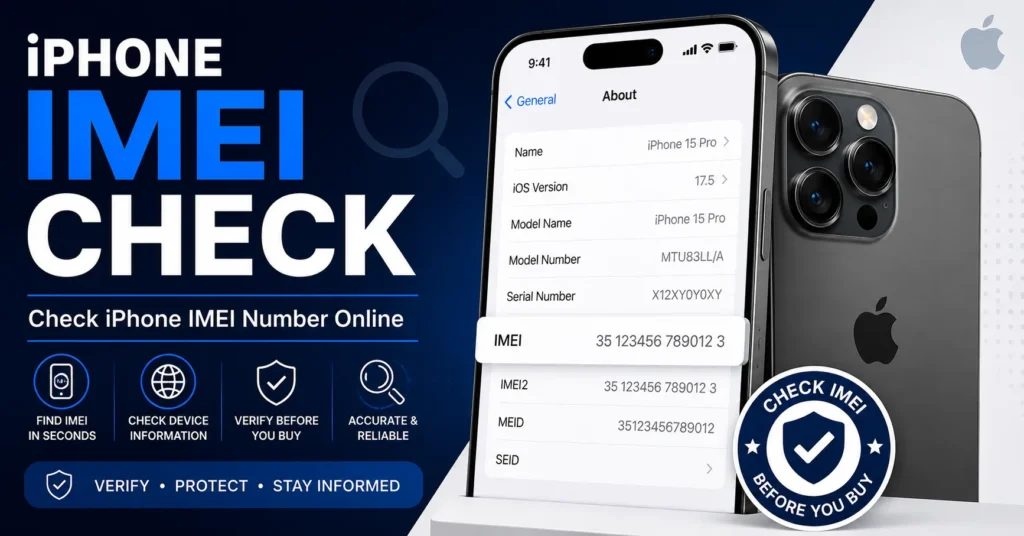
Settings → General → About
Scroll down until you find IMEI or IMEI/MEID.
Apple’s current support documentation confirms this as the standard way to find the IMEI on an iPhone.
Copy the iPhone IMEI
Apple also allows you to touch and hold the identifier so it can be copied into another field or support form.
This helps reduce the chance of entering one of the 15 digits incorrectly.
Find IMEI on the Original iPhone Box
If you cannot access the iPhone, check the original packaging.
The IMEI may be printed on the product label together with other device information.
Apple lists the original packaging as another place where the IMEI can be found.
Find IMEI on the iPhone SIM Tray
Some iPhone models have the IMEI or IMEI/MEID information associated with the SIM tray.
Apple notes that certain models provide this information on the SIM tray.
The exact location depends on the iPhone model.
Find IMEI Through Finder
If you cannot access the normal Settings screen, Apple’s device-management tools can also provide device identification information for supported devices.
This can be useful when checking an iPhone that cannot be fully accessed through its normal interface.
How to Check iPhone IMEI Online
Once you have the correct IMEI, an iPhone IMEI check online generally follows a simple process.
- Find the iPhone’s IMEI.
- Copy or carefully write down the complete number.
- Open an appropriate IMEI checking service.
- Enter the IMEI.
- Submit the check.
- Review the available device information.
- Compare the result with the actual iPhone.
Always make sure you are checking the IMEI belonging to the iPhone you are actually investigating.
What Can an iPhone IMEI Check Tell You?
The exact information depends on the IMEI service and database.
Depending on the service, an iPhone IMEI check may help identify:
- iPhone manufacturer
- iPhone model
- Device family
- Device status
- Carrier-related information
- Reported status
- Blacklist-related information
Do not assume that every online IMEI service has access to every piece of information about an iPhone.
iPhone IMEI Check Before Buying a Used iPhone
One of the most useful reasons to perform an iPhone IMEI check is before buying a second-hand iPhone.
A used iPhone can look perfectly normal while still having a carrier, device-status, ownership or activation-related problem.
Before purchasing, check:
- IMEI
- Exact iPhone model
- Serial number
- Blacklist status
- Carrier compatibility
- Activation status
- Ownership information
- Physical condition
- Battery condition
- Camera functionality
- Charging port
- SIM functionality
- Mobile network connection
An IMEI check should be part of a complete used-iPhone inspection rather than the only check you perform.
Why Check an iPhone IMEI Before Buying?
The IMEI can help you compare the device you are holding with the information supplied by the seller.
For example, if an IMEI lookup identifies a different iPhone model from the device being sold, investigate the discrepancy before purchasing.
Whenever possible, retrieve the IMEI directly from the iPhone rather than relying only on a number provided by the seller.
iPhone IMEI Check vs Serial Number
The IMEI and serial number are different identifiers.
| Identifier | Purpose |
|---|---|
| IMEI | Identifies cellular mobile equipment. |
| Serial number | Identifies the individual device for manufacturer and service purposes. |
| Model number | Identifies a particular iPhone variant. |
| Phone number | Identifies the mobile service or subscriber. |
| ICCID | Identifies the SIM-related cellular subscription environment. |
| EID | Identifies the eSIM environment on supported devices. |
Apple specifically lists these identifiers separately in its device-information documentation.
iPhone IMEI Check vs iPhone Model Number
The model number identifies a particular iPhone variant, while the IMEI identifies the individual cellular device.
Many iPhones can have the same model number, while each cellular device has its own IMEI.
When buying a used iPhone, compare both.
iPhone IMEI Check Online vs IMEI Lookup
iPhone IMEI check and IMEI lookup are closely related search terms, but we are keeping them separate on IMEIChanger.net.
This page focuses specifically on iPhone IMEI check.
Our IMEI Lookup page covers the broader lookup intent across iPhone and Android devices.
This separation helps avoid unnecessary keyword overlap between the two resources.
iPhone IMEI Check vs General IMEI Check
Our IMEI Number Check Online Tool is the broader resource for checking IMEI information across different mobile devices.
This page is specifically focused on Apple’s iPhone.
If your search is specifically about an iPhone, this guide should be the more relevant starting point.
iPhone IMEI Blacklist Check
Many people search for an iPhone IMEI check because they want to know whether a used iPhone has a reported or restricted status.
A blacklist check is a more specific type of IMEI investigation.
If blacklist status is your main concern, use our dedicated IMEI Blacklist Checker.
What Does a Blacklisted iPhone IMEI Mean?
A blacklisted IMEI generally means that the device identifier has been reported or restricted in a relevant carrier or device-status database.
Possible circumstances can include:
- Lost-device report
- Stolen-device report
- Insurance-related report
- Carrier-related restriction
- Other device-status problems
The exact reason depends on the carrier, country and organization maintaining the database.
If an iPhone appears to have an incorrect blacklist status, contact the relevant carrier, seller or organization responsible for the report.
What If the iPhone IMEI Does Not Match the Box?
If the IMEI displayed by an iPhone does not match the number on its original packaging, investigate the discrepancy before buying or selling the device.
Possible explanations can include:
- Previous repair
- Device replacement
- Incorrect packaging
- Incorrect documentation
- Previous component replacement
A mismatch should not automatically be interpreted as proof of wrongdoing, but it deserves investigation.
What If the iPhone IMEI Does Not Match the Device?
If an online result identifies a different iPhone model from the phone you are holding, stop and investigate before completing a purchase.
Check:
- IMEI entered into the service
- iPhone model
- Model number
- Serial number
- Original packaging
- Seller information
A simple typing error can produce an incorrect lookup result, so verify the IMEI first.
Can You Check an iPhone IMEI Without Turning On the Phone?
In many cases, yes.
If you cannot access the iPhone’s Settings application, you may be able to find the IMEI through:
- Original packaging
- SIM tray on supported models
- Finder or connected-device information
- Previously recorded device information
Apple lists the device, original packaging and other Apple-supported locations as possible sources for the IMEI.
Can You Check an iPhone IMEI Before Activation?
Depending on the iPhone model and setup state, device information may be accessible before completing the normal setup process.
Apple documents an Information button that can be used on the initial “Hello” screen to access certain device identifiers before setup on supported devices.
This can be useful when inspecting a second-hand iPhone before completing activation.
iPhone IMEI Check for Older iPhones
An IMEI check can be particularly useful when purchasing an older iPhone from a second-hand marketplace.
Older iPhones may have different IMEI locations depending on the generation.
Apple documents several historical locations, including the back of certain older iPhone models and the SIM tray on some devices.
When buying an older iPhone, also check:
- Battery condition
- iOS compatibility
- Carrier compatibility
- Activation status
- Physical condition
- Screen condition
- Camera operation
- Charging functionality
iPhone IMEI Check for Dual-SIM and eSIM Devices
Some newer iPhones support multiple cellular configurations and may display more than one IMEI.
If your iPhone shows multiple IMEI values, record the relevant identifiers separately.
Do not confuse the IMEI with the EID.
The IMEI is associated with cellular device identification, while the EID is associated with the eSIM environment.
What If My iPhone Has Two IMEI Numbers?
Seeing two IMEI numbers does not automatically mean there is a problem.
Multiple IMEIs can be associated with iPhones that support multiple cellular connections.
If you are checking a used iPhone, record both values when they are displayed.
Can an iPhone IMEI Check Tell If an iPhone Is Stolen?
An IMEI service may return a reported or restricted status when that information is available in its database.
However, an online IMEI result should not be treated as complete proof of ownership or the entire history of a device.
If you are purchasing a used iPhone, verify ownership and purchase documentation whenever possible.
Can an iPhone IMEI Check Track the Phone?
No.
An ordinary public IMEI check does not provide the iPhone’s live GPS location.
The IMEI is a device identifier, not a public location-tracking system.
If an iPhone has been lost, use Apple’s appropriate device-location and account-security features and contact the carrier when necessary.
Can an iPhone IMEI Check Unlock an iPhone?
No.
An IMEI check and carrier unlocking are different processes.
If an iPhone is carrier locked, the appropriate solution is to contact the carrier and follow its official unlocking process.
For SIM-related information, see our SIM Unlock guide.
Can an iPhone IMEI Check Remove a Blacklist?
No.
An IMEI check can investigate available information, but it does not remove a reported or restricted status.
If the status is incorrect, contact the carrier, seller or organization responsible for the report.
iPhone IMEI Check vs Activation Lock
An IMEI check should not be confused with Apple’s Activation Lock.
Activation Lock is an Apple security feature associated with the device’s account and Find My system.
Checking an IMEI does not remove Activation Lock.
If you are buying a used iPhone, make sure the previous owner’s account has been properly removed and the device is ready for legitimate activation before completing the purchase.
iPhone IMEI Check vs iCloud Lock
The terms “iCloud lock” and “Activation Lock” are often used by consumers to describe Apple’s device-security system.
An IMEI check is not an iCloud or Activation Lock removal method.
Do not purchase an iPhone that remains associated with another person’s Apple Account.
iPhone IMEI Check and Carrier Lock
Carrier lock and IMEI status are separate issues.
An iPhone can have a valid IMEI and still be restricted to a particular carrier.
When buying a used iPhone, check both:
- IMEI/device status
- Carrier lock status
Do not assume that a clean IMEI automatically means that an iPhone is carrier unlocked.
iPhone IMEI Check and Warranty
The IMEI can be useful when identifying a device for Apple support or service.
However, an IMEI check does not necessarily provide complete warranty information.
Warranty status can depend on Apple’s records, purchase information, region and other factors.
Use Apple’s official support resources when you need authoritative warranty information.
iPhone IMEI Check and Lost or Stolen Devices
The IMEI can be useful when reporting a lost or stolen device to a carrier or support provider.
Keep a record of your iPhone’s IMEI in a secure location rather than posting it publicly.
If your iPhone is lost or stolen, use Apple’s device-security and location features and contact your carrier as appropriate.
iPhone IMEI Check and Privacy
An IMEI is a device identifier.
Do not publish your complete IMEI unnecessarily on public websites, social networks or forums.
When using an online IMEI checking service, avoid providing additional personal information unless it is required for the service you are using.
How Accurate Is an iPhone IMEI Check?
The accuracy and amount of information available depend on the particular service and database.
Different IMEI services may provide different results.
For an important used-phone purchase, combine an IMEI check with:
- Physical inspection
- Ownership verification
- Activation-status verification
- Carrier compatibility
- Device model verification
- Serial-number verification
An IMEI check is valuable, but it should not be the only verification method.
Common iPhone IMEI Check Mistakes
Entering the Wrong Number
A single incorrect digit can produce an incorrect result.
Confusing IMEI With Serial Number
Both are device identifiers, but they are not interchangeable.
Confusing IMEI With EID
The EID is associated with the eSIM environment, while the IMEI identifies cellular equipment.
Checking Only a Seller-Provided IMEI
Whenever possible, compare the seller’s number with the IMEI displayed directly by the iPhone.
Assuming a Clean IMEI Means Everything Is Fine
A clean IMEI does not guarantee that the iPhone has no Activation Lock, carrier restriction, hardware problem or ownership issue.
Assuming an IMEI Check Removes a Lock
An IMEI check provides information. It does not unlock or remove Apple’s security features.
What If My iPhone IMEI Is Missing?
If an iPhone does not display its expected IMEI, investigate the device and its history rather than assuming that an online checker can repair it.
Possible causes can depend on the model, cellular hardware, software state and previous repair history.
If you are dealing with a genuine IMEI problem, see our IMEI Repair Tool resource for general troubleshooting information.
What If My iPhone IMEI Is Invalid?
An Invalid IMEI can indicate a problem with the device’s cellular configuration or other underlying components.
Before attempting any advanced modification, identify:
- Exact iPhone model
- iOS version
- Current cellular status
- Whether the problem started after a repair
- Whether the problem started after a software change
Use appropriate Apple-supported or professional repair procedures for legitimate device problems.
iPhone IMEI Check vs IMEI Repair
| Search Intent | Best Resource |
|---|---|
| iPhone IMEI check | This page |
| IMEI number check online | IMEI Number Check Online |
| IMEI lookup | IMEI Lookup |
| IMEI blacklist check | IMEI Blacklist Checker |
| IMEI repair | IMEI Repair Tool |
| iPhone carrier unlock | SIM Unlock Guide |
iPhone IMEI Check for Every iPhone Model
The exact location of the IMEI can vary between iPhone generations.
Apple documents different locations for different models, including Settings, the original packaging, the SIM tray on supported devices, the device itself on certain older models, and connected-device information.
The general checking process remains the same:
- Locate the IMEI.
- Verify that the number is complete.
- Enter it into the appropriate checking service.
- Review the result.
- Compare the information with the actual iPhone.
iPhone IMEI Check for iPhone 15 and Newer Models
On newer iPhones, the most straightforward method is normally:
Settings → General → About
Scroll to the IMEI information.
The exact hardware configuration and cellular features can vary by model and region.
iPhone IMEI Check for iPhone 14
On supported iPhone 14 models, the IMEI can be found through:
Settings → General → About
When buying a used iPhone 14, compare the IMEI with the device model and other available information before completing the purchase.
iPhone IMEI Check for iPhone 13
iPhone 13 users can normally find the IMEI under:
Settings → General → About
If you cannot access the device, check the original packaging or other Apple-supported device information locations.
iPhone IMEI Check for iPhone 12
For iPhone 12 models, start with:
Settings → General → About
Check the IMEI carefully before using an online lookup or checking service.
iPhone IMEI Check for iPhone 11
On iPhone 11 models, the IMEI can normally be found under:
Settings → General → About
For a used iPhone 11, also verify activation status, carrier compatibility and ownership before purchasing.
iPhone IMEI Check for iPhone X and Older Models
Older iPhone models can have additional physical locations for the IMEI.
Apple documents several historical models where the IMEI/MEID appears on the SIM tray or the back of the device.
If you are checking an older iPhone, consult the model-specific information available from Apple and compare the IMEI with the device documentation.
Frequently Asked Questions About iPhone IMEI Check
How do I check my iPhone IMEI?
Go to Settings → General → About and scroll to the IMEI information. Apple identifies this as the standard method for finding the iPhone IMEI.
How many digits are in an iPhone IMEI?
A standard IMEI normally contains 15 digits.
Can I check an iPhone IMEI online?
Yes. Once you have the correct IMEI, you can use an appropriate online IMEI checking service to investigate available device information.
Where can I find my iPhone IMEI if the phone won’t turn on?
Depending on the model, check the original packaging, SIM tray, previously recorded device information, or Apple-supported connected-device information.
Can I check an iPhone IMEI before buying a used phone?
Yes. Checking the IMEI before buying is a useful precaution, but it should be combined with ownership, activation, carrier and physical-device checks.
Can an iPhone IMEI check tell me if the phone is blacklisted?
Some IMEI services provide blacklist-related information. For dedicated blacklist checking, use our IMEI Blacklist Checker.
Can an IMEI check tell me if an iPhone is stolen?
An IMEI service may report a lost, stolen or restricted status when that information is available in its database. However, ownership should also be independently verified.
Can an iPhone IMEI check track a phone?
No. A normal public IMEI check does not provide the phone’s live location.
Can an iPhone IMEI check unlock an iPhone?
No. IMEI checking and carrier unlocking are separate processes.
Can an iPhone IMEI check remove Activation Lock?
No. Activation Lock is an Apple security feature and is not removed by an IMEI check.
Can an iPhone IMEI check remove a blacklist?
No. An IMEI check investigates status; it does not remove a reported or restricted status.
Is the iPhone IMEI the same as the serial number?
No. Apple treats the IMEI/MEID and serial number as separate device identifiers.
Is the iPhone IMEI the same as the EID?
No. The IMEI identifies cellular equipment, while the EID identifies the eSIM environment on supported devices.
Why does my iPhone have two IMEI numbers?
Some iPhones support multiple cellular configurations and can therefore display more than one IMEI.
What if my iPhone IMEI does not match the box?
Investigate the discrepancy before buying or selling the device. Previous repairs, device replacement or incorrect packaging can be possible explanations.
What if my iPhone IMEI is missing?
Investigate the device’s software, cellular configuration and repair history. For general IMEI troubleshooting, see our IMEI Repair Tool.
Is an iPhone IMEI check free?
Some services provide basic IMEI checks for free, while detailed reports may require payment. Check what information is included before paying for a report.
Does every iPhone have an IMEI?
iPhones with cellular connectivity use device identifiers such as IMEI/MEID. Wi-Fi-only Apple devices such as certain iPod touch models do not function as cellular phones and therefore have different identifier requirements.
Related iPhone and IMEI Resources
- IMEI Number Check Online — general IMEI checking across mobile devices.
- IMEI Lookup — broader IMEI lookup information for iPhone and Android.
- IMEI Blacklist Checker — investigate reported or restricted device status.
- IMEI Repair Tool — information about missing, Invalid and other IMEI problems.
- IMEI Changer Tool — broader IMEI changer information.
- SIM Unlock Guide — SIM and carrier unlocking information.
- iCloud Unlocker Information — separate Apple account/security topic.
Final Thoughts on iPhone IMEI Check
An iPhone IMEI check is a useful first step when identifying an iPhone, investigating a used device, or checking information associated with a particular cellular device.
Start by finding the IMEI through Settings → General → About, which Apple identifies as the standard location. Depending on the model, the IMEI may also be available on the original packaging, SIM tray, device itself, or through Apple-supported connected-device information.
If you are buying a used iPhone, compare the IMEI with the model, serial number and available documentation. Also check activation status, carrier compatibility, ownership and physical condition.
Remember that an iPhone IMEI check is not the same as an IMEI blacklist check, carrier unlock, Activation Lock check, IMEI repair or IMEI changer.
If you need a general IMEI check across different phone brands, visit our IMEI Number Check Online Tool.
If you specifically want to investigate blacklist status, use our IMEI Blacklist Checker.
If your iPhone has an IMEI-related technical problem, see our IMEI Repair Tool resource.
This page is specifically focused on the iPhone IMEI check search intent, keeping it separate from your general IMEI checker, IMEI lookup, blacklist and repair pages.
Updated: August 31, 2026