
SIM Network Unlock PIN: How to Get a Network Unlock Code and Unlock Your Phone
If your phone displays “SIM Network Unlock PIN,” “Network Unlock Code,” “SIM Network Unlock Code,” “Enter Network Unlock PIN,” or a similar message after inserting a SIM card from another carrier, your phone is most likely restricted to its original mobile network.
A SIM network unlock PIN is a code used by certain carrier-locked phones to remove a network restriction. The exact unlocking process depends on the phone manufacturer, model, original carrier, country, and the type of network lock applied to the device.
The safest approach is to identify the carrier that originally locked the phone and request an official network unlock. In many cases, eligible phones can be unlocked without changing the IMEI, installing third-party software, or modifying the phone’s firmware.
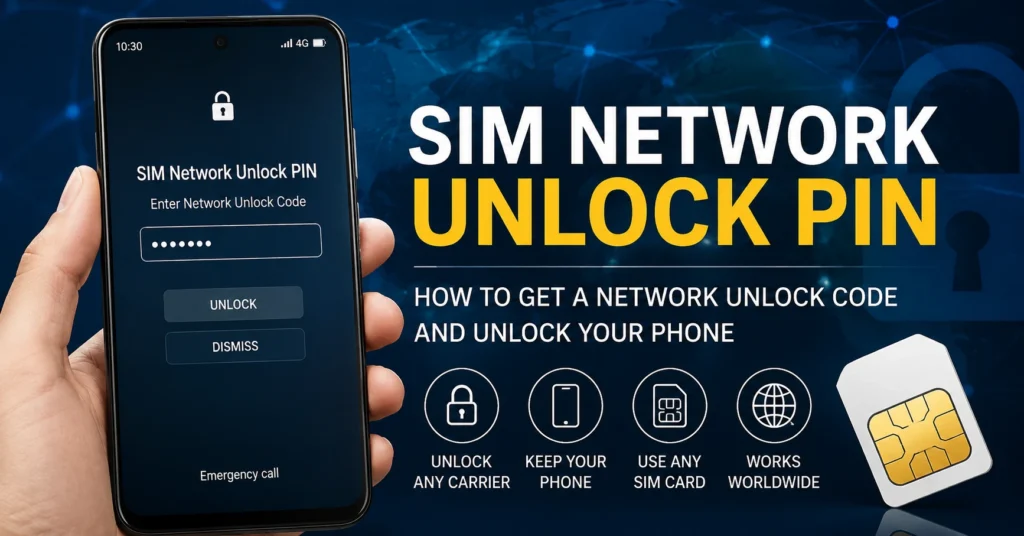
This updated guide explains what a SIM network unlock PIN means, how to find the correct unlock code, how IMEI information is used, what to do when an unlock code does not work, and how to avoid common mistakes.
What Is a SIM Network Unlock PIN?
A SIM Network Unlock PIN is a code associated with a carrier or network restriction on a mobile phone.
When a phone is network locked, it may only accept SIM cards from the carrier that originally sold or activated the device. If you insert a SIM card from another carrier, the phone may display a message requesting a network unlock PIN or network unlock code.
The terminology can vary between manufacturers and carriers. You may see messages such as:
| Message on the phone | What it usually means |
|---|---|
| SIM Network Unlock PIN | The phone is requesting a network unlock code |
| Network Unlock Code | The device is asking for the carrier unlock code |
| SIM Network Unlock Code | A network restriction is preventing use of another SIM |
| Network Lock | The phone is restricted to a particular carrier |
| SIM Locked | The device may have a carrier or SIM-related restriction |
| Enter Unlock Code | The phone is requesting an authorization code |
A network unlock is different from changing an IMEI, removing a screen lock, bypassing an account, or removing a SIM card PIN.
SIM Network Unlock PIN vs SIM PIN vs PUK
These terms are easy to confuse, but they are not the same thing.
| Code | Purpose | Usually provided by |
|---|---|---|
| SIM PIN | Protects the SIM card itself | Carrier / SIM provider |
| PUK | Unlocks a SIM after too many incorrect SIM PIN attempts | Carrier / SIM provider |
| Network Unlock PIN | Removes a carrier network restriction from the phone | Original carrier |
| Network Unlock Code | Another common name for a carrier unlock code | Original carrier |
| IMEI | Identifies the mobile device | Manufacturer / device |
If your phone says “SIM Network Unlock PIN,” entering the normal SIM PIN or PUK code is generally not the correct solution.
The message is usually referring to the phone’s network restriction, not the security PIN belonging to the SIM card.
Why Is My Phone Asking for a SIM Network Unlock PIN?
The most common reason is that the phone was originally sold or activated with a carrier restriction.
For example, you may have:
- Bought a phone from a mobile carrier.
- The carrier restricted the phone to its network.
- Later inserted a SIM card from another network.
- The phone detected that the new SIM belongs to a different carrier.
- The phone displayed a network unlock message.
This can also happen when purchasing a used phone. A seller may describe a device as “unlocked,” but the phone can still be restricted to its original network.
Before buying a used phone, it is therefore worth checking the device’s IMEI and network status.
For more information, see our IMEI Number Checker resources.
How to Get a SIM Network Unlock PIN
The best way to obtain a network unlock code is normally through the carrier that originally locked the phone.
The carrier may use the phone’s IMEI to identify the device and determine whether it qualifies for an unlock.
Step 1: Find Your IMEI Number
The IMEI is a unique identifier associated with your mobile device.
On many phones, you can display it by entering:
*#06#
You can also find the IMEI through the phone’s settings or on the original packaging, depending on the device.
Many Android phones provide the IMEI under a section such as:
Settings → About Phone → Status → IMEI
The exact menu can differ between manufacturers and Android versions.
On an iPhone, the IMEI can normally be found under:
Settings → General → About
If the phone has more than one IMEI, make sure you identify the IMEI associated with the cellular connection you are troubleshooting.
Step 2: Identify the Original Carrier
Finding the original carrier is important because the carrier that applied the network restriction is normally the organization that can authorize the unlock.
Check:
- The original purchase information
- The phone’s packaging
- The previous owner’s information
- The carrier name displayed by the phone
- The original SIM card
- The seller’s documentation
- Your carrier account
If you purchased the phone second-hand, ask the seller which carrier originally supplied the device.
Step 3: Check the Carrier’s Unlock Requirements
Every carrier can have different eligibility requirements.
Depending on the carrier and country, requirements can include:
- The device being fully paid for
- The account being in good standing
- The phone not being reported lost or stolen
- A completed financing agreement
- Minimum service requirements
- No outstanding balance
- No fraud-related restriction
- The device being compatible with the carrier’s unlocking policy
Do not assume that every network-locked phone can immediately be unlocked.
Step 4: Request the Network Unlock
Contact the original carrier and request a device unlock or network unlock.
The carrier may process the unlock remotely. Some phones unlock automatically after the carrier approves the request, while others may display an unlock-code prompt.
If the carrier provides a specific unlock code, keep it exactly as supplied.
Step 5: Insert the New SIM Card
After the carrier confirms that the phone has been unlocked, turn the device off and insert the SIM card from the new carrier.
Turn the phone back on.
If the device requests a network unlock code, enter the code supplied by the carrier.
Do not repeatedly guess codes.
Step 6: Test the New Network
After the unlock is completed, verify that the phone can:
- Connect to the mobile network
- Make a phone call
- Send a text message
- Use mobile data
- Register on the new carrier
- Display the expected network name
A successful network unlock does not necessarily mean that every network feature will work. The phone must also support the new carrier’s network technologies and frequency bands.
Can an IMEI Number Be Used to Get a Network Unlock Code?
The IMEI is commonly used by carriers to identify a mobile device during the unlock process.
However, an IMEI does not automatically generate a valid network unlock PIN.
The unlock decision and code depend on the carrier’s records and the specific device.
This is why you should be careful with websites claiming that any IMEI can instantly generate a guaranteed network unlock code.
An IMEI can identify the device, but it does not by itself prove that the device is eligible for unlocking.
Is There a Free SIM Network Unlock PIN Generator?
You may find websites and software claiming to generate free SIM network unlock PINs from an IMEI.
Be careful with these services.
A legitimate network unlock normally depends on carrier authorization and device-specific information. A generic online generator cannot reliably guarantee a valid unlock code for every phone, carrier, country, and model.
Before using any third-party service, check:
- Who operates the service
- Whether the service explains its process
- Whether the carrier authorizes the unlock
- Whether the service asks for unnecessary personal information
- Whether the service promises an unrealistic universal unlock
- Whether the service requires suspicious software
- Whether the phone could be damaged by the proposed procedure
If your device is eligible for an official carrier unlock, that is generally the safest starting point.
Does a Network Unlock Change the IMEI?
No.
A normal carrier network unlock should not require changing the phone’s IMEI.
The IMEI is the device identifier. A network unlock changes the phone’s carrier restriction, not its identity.
You should therefore be suspicious of any unlocking procedure that tells you to change, rewrite, replace, or generate a different IMEI simply to remove a carrier SIM lock.
For legitimate IMEI troubleshooting and device information, see our IMEI Repair resources.
What Is the Difference Between SIM Unlock and IMEI Unlock?
SIM unlocking and IMEI-related services are often confused because both may involve the same phone.
A SIM/network unlock removes a carrier restriction that prevents the phone from accepting another network’s SIM.
An IMEI-related repair concerns the device identifier and can involve a completely different problem.
| Problem | Likely solution |
|---|---|
| Phone says Network Unlock Code | Contact the original carrier |
| Phone asks for SIM PIN | Enter the correct SIM PIN |
| SIM asks for PUK | Contact the SIM carrier for the PUK |
| IMEI is missing | Investigate the device/firmware problem |
| Phone shows Invalid IMEI | Diagnose the underlying IMEI/baseband issue |
| Phone is blacklisted | Investigate the device’s reported status |
| Phone has an account lock | Follow the manufacturer’s account-recovery process |
Understanding which problem you actually have can prevent you from using the wrong procedure.
How to Unlock a Samsung Phone From a Network
Samsung phones can display different messages depending on the model, carrier, region, and software version.
If a Samsung Galaxy phone asks for a network unlock PIN after inserting another carrier’s SIM, first identify the original carrier.
Do not confuse a network unlock with:
- Samsung account security
- Google account protection
- Screen lock
- SIM PIN
- PUK
- Factory Reset Protection
- IMEI problems
For Samsung-specific IMEI information and troubleshooting, see our Samsung IMEI resources.
Samsung Network Unlock Troubleshooting
If your Samsung does not recognize another carrier’s SIM after an unlock request, check:
- Whether the carrier approved the unlock.
- Whether the phone was actually supplied by that carrier.
- Whether the device is still subject to an account or financing restriction.
- Whether the new SIM is active.
- Whether the new carrier supports the phone’s network bands.
- Whether the phone needs to be restarted after the unlock.
- Whether the device is showing a different type of lock.
Do not repeatedly enter random unlock codes.
How to Unlock a Huawei Phone From a Network
Huawei phones can also be affected by carrier restrictions.
If your Huawei requests a network unlock code, identify the original carrier and confirm the device’s eligibility before attempting an unlock.
The IMEI may be required by the carrier to identify the device.
For Huawei-specific information, see our Huawei modem unlocker guide.
Huawei Network Unlock Troubleshooting
If the unlock does not work, verify:
- The IMEI was entered correctly.
- The original carrier was identified correctly.
- The device is eligible for unlocking.
- The SIM card is active.
- The phone supports the new carrier’s network.
- The unlock code belongs to the exact device.
A code intended for another device or model should not be used.
What to Do If the SIM Network Unlock PIN Does Not Work
If the code supplied for your phone does not work, stop entering codes repeatedly.
First verify that:
The IMEI Is Correct
Compare the IMEI displayed on the phone with the IMEI provided to the carrier.
One incorrect digit can cause an unlock request to be associated with the wrong device.
The Correct Carrier Was Used
The carrier that originally locked the device may be different from the carrier you currently use.
A phone can also be sold second-hand after being locked by another network.
The Code Matches the Device
An unlock code is not necessarily universal.
The code should correspond to the specific phone and network restriction.
The Phone Has a Different Type of Lock
A phone can have several different security mechanisms.
If the screen asks for a Google account, Apple Account, Samsung account, screen PIN, SIM PIN, or PUK, you are dealing with a different problem.
The Phone Is Compatible With the New Network
A successful SIM unlock does not guarantee network compatibility.
The phone may be unlocked but still lack support for certain frequency bands or network technologies used by the new carrier.
What Happens After a Successful Network Unlock?
After a successful network unlock, the phone should no longer be restricted to the original carrier’s SIM network, subject to the device’s hardware and the new carrier’s compatibility.
You may be able to:
- Use another carrier’s SIM
- Change mobile networks
- Use a local SIM while traveling
- Choose a different mobile plan
- Use a supported prepaid SIM
- Sell the phone as an unlocked device
However, an unlocked phone is not automatically compatible with every carrier in every country.
Always check network compatibility before changing providers.
Can I Use Any SIM Card After Unlocking?
Not necessarily.
A network-unlocked phone can generally accept SIM cards from other compatible networks, but compatibility still depends on the phone’s hardware, supported bands, network technology, carrier requirements, and SIM/eSIM support.
For example, an older phone may be unlocked but lack the LTE or 5G bands required by a newer network.
Therefore, think of unlocking and compatibility as two separate checks:
Unlock = removes the carrier restriction.
Compatibility = determines whether the phone can actually operate on the new network.
Why Does My Phone Say “SIM Not Supported”?
“SIM Not Supported,” “SIM Not Valid,” and similar messages can have several causes.
Possible reasons include:
- The phone is carrier locked.
- The SIM is inactive.
- The SIM is damaged.
- The carrier does not support the device.
- The phone is not compatible with the network.
- The device requires an official carrier unlock.
- The phone has another account or security restriction.
Start by identifying whether the problem is a network lock or a SIM/account problem.
What If I Bought a Used Phone That Is Network Locked?
If a used phone was advertised as unlocked but asks for a network unlock PIN, contact the seller first.
Ask:
- Which carrier originally supplied the phone?
- Was the phone fully paid off?
- Was the device officially unlocked?
- Is there an outstanding account balance?
- Is the phone reported lost or stolen?
- Can the original carrier process an unlock?
If the seller cannot provide useful information, investigate the device carefully before spending money on third-party unlocking services.
An IMEI check can be useful when evaluating a used phone.
Can a Blacklisted Phone Be Unlocked?
A network unlock and a blacklist status are different issues.
Unlocking a carrier restriction does not automatically remove a device from a blacklist.
If a phone has been reported lost, stolen, fraudulent, or otherwise restricted, the appropriate solution normally involves the carrier or organization that placed the restriction.
Do not assume that a SIM unlock will solve a blacklist problem.
For additional information, see our IMEI Blacklist Checker resource.
Is Network Unlocking Legal?
Network unlocking laws and carrier policies vary by country and circumstance.
Using an authorized carrier unlocking process for a phone that you own or are legitimately entitled to use is generally the appropriate approach.
The important distinction is between removing a legitimate carrier restriction and attempting to bypass ownership, fraud, blacklist, theft, financing, or other security restrictions.
If you have a legitimate device that is eligible for unlocking, start with the original carrier.
Common SIM Network Unlock Mistakes
Avoid these common mistakes when trying to unlock a phone.
Entering the SIM PIN Instead of the Network Unlock Code
A SIM PIN protects the SIM card. It is not normally the same as a network unlock code.
Guessing Unlock Codes
Do not repeatedly enter random codes.
Some devices can impose additional restrictions after multiple failed attempts.
Changing the IMEI to Unlock a Phone
A standard network unlock should not require changing the IMEI.
Changing an IMEI can create separate legal, technical, and device-identification problems.
Using a Universal Unlock Generator
There is no reason to assume that one generic code generator will work for every phone, carrier, country, and model.
Ignoring Network Compatibility
Even after a successful unlock, the phone must support the new carrier’s network.
Buying an Unlock Before Checking the Carrier
Always check whether the original carrier offers an official unlock first.
You may not need to pay a third party at all.
SIM Network Unlock PIN Quick Reference
| Your problem | What to check first |
|---|---|
| SIM Network Unlock PIN | Original carrier and device unlock eligibility |
| Network Unlock Code | Original carrier |
| SIM PIN | SIM card documentation or carrier |
| PUK code | SIM carrier |
| Invalid IMEI | Device/IMEI troubleshooting |
| Missing IMEI | Firmware/device diagnosis |
| Blacklisted IMEI | Device-status investigation |
| SIM Not Supported | Carrier lock and compatibility |
| No signal after unlock | Network bands, SIM activation and carrier compatibility |
Frequently Asked Questions About SIM Network Unlock PIN
What Does SIM Network Unlock PIN Mean?
It normally means that the phone is restricted to a particular carrier and is requesting a network unlock code before accepting a SIM from another carrier.
Where Can I Get a SIM Network Unlock PIN?
The original carrier that applied the network restriction is normally the best source for an unlock code or official device unlock.
Is a SIM Network Unlock PIN the Same as a SIM PIN?
No. A SIM PIN protects the SIM card, while a network unlock PIN is associated with the phone’s carrier restriction.
Is a SIM Network Unlock PIN the Same as a PUK?
No. A PUK is used to recover a SIM after too many incorrect SIM PIN attempts. A network unlock code is used to remove a carrier restriction from the phone.
Do I Need My IMEI to Unlock My Phone?
The carrier may request your IMEI to identify the device and process an unlock request. However, the IMEI itself does not automatically generate a valid network unlock code.
Can I Unlock My Phone Without Changing the IMEI?
Yes. A normal carrier network unlock does not require changing the IMEI.
Can I Unlock Any Phone With a Free Generator?
You should not assume that a generic free generator will work with every phone. Network unlock eligibility and codes depend on the device, carrier, country, and network restriction.
Why Does My Phone Still Say Network Locked After the Carrier Approved the Unlock?
The phone may need to restart, connect to the carrier, use a different SIM, or complete an additional carrier-specific process. If the message remains, contact the carrier again and confirm that the unlock was successfully applied to the exact IMEI.
Will an Unlocked Phone Work With Every Carrier?
Not necessarily. The phone must also support the new carrier’s network bands, technologies, SIM/eSIM requirements, and other compatibility requirements.
Can I Unlock a Phone That I Bought Used?
Possibly. The original carrier may unlock it if the device meets its eligibility requirements. Ask the seller which carrier originally supplied the phone and verify the device status before paying for a third-party service.
Does Unlocking Remove a Blacklist?
No. A network unlock and an IMEI blacklist are separate issues. Unlocking a phone does not automatically remove a blacklist or other device-status restriction.
How Do I Find My IMEI?
On many phones, dial *#06# to display the IMEI. You can also find it in the phone’s settings or on the original packaging, depending on the device.
Final Thoughts on SIM Network Unlock PIN
A SIM Network Unlock PIN is usually connected to a carrier restriction that prevents a phone from accepting another network’s SIM card.
The most reliable approach is to identify the original carrier, find the device’s IMEI, check the carrier’s unlock requirements, and request an official network unlock.
Do not confuse a network unlock code with a SIM PIN, PUK, screen password, account lock, or IMEI repair. These are different problems and require different solutions.
If you are troubleshooting a used phone or another network-related problem, start by identifying exactly what the phone is asking for. That one step can save you from entering the wrong code, paying for an unnecessary service, or making an unnecessary software change.
For additional device information, explore our IMEI Number Checker, IMEI Blacklist Checker, Samsung IMEI resources, Huawei unlocking guide, and IMEI Repair resources.
Updated: August 27, 2026