
How to Check an iPhone Serial Number: Find & Verify Your Device
If you want to check the serial number of an Apple iPhone, the first step is simply finding the correct number. The serial number is a manufacturer-assigned identifier that Apple uses to identify a particular device, and it can be useful when checking Apple support information, identifying an iPhone, verifying device records, or investigating a used phone before buying it. It is different from the IMEI, which identifies the cellular device.
A serial number can be found directly on the iPhone, through your Apple Account, from a computer connected to the device, or on the original packaging. The method you use depends on whether you currently have access to the iPhone.
What Is an iPhone Serial Number?
An iPhone serial number is a unique identifier assigned to the individual device.
It is useful when Apple or an authorized service provider needs to identify a particular iPhone. You may be asked for it when requesting technical support, checking device information, arranging service, or dealing with an ownership or purchase issue.
It is important not to confuse the serial number with other identifiers shown by the iPhone.
An iPhone can have several different identifiers, including:
- Serial number
- IMEI
- EID
- ICCID
- Model number
- Phone number
Each one has a different purpose.
The serial number is primarily a manufacturer device identifier.
The IMEI identifies the cellular equipment.
The EID is associated with the eSIM environment on supported devices.
The ICCID identifies the SIM or eSIM subscription environment.
The phone number identifies the mobile service rather than the physical iPhone.
Understanding these differences is especially important when buying a used iPhone because sellers sometimes use the terms interchangeably even though they are not the same thing.
How to Find the Serial Number on an iPhone
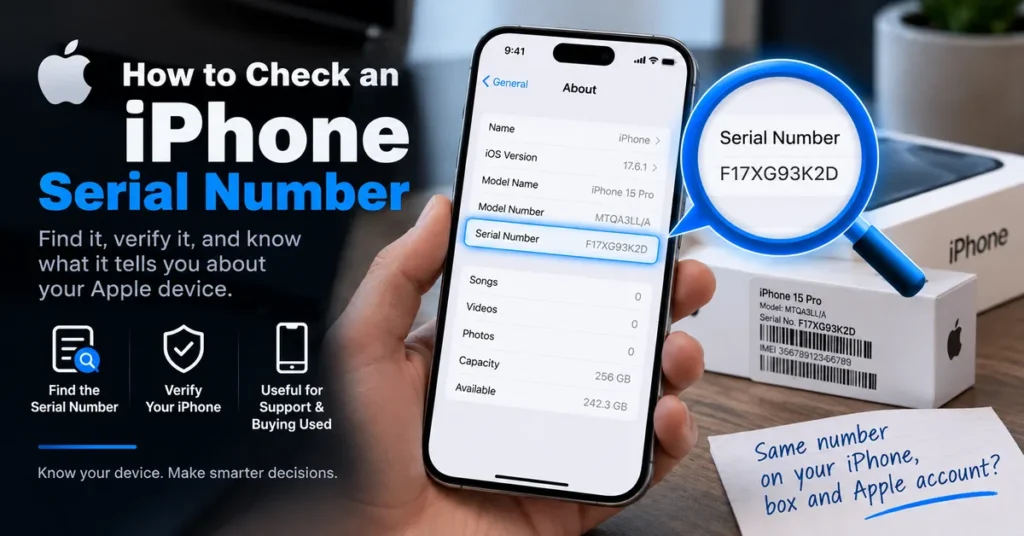
If the iPhone is working normally, the easiest method is through Settings.
Open:
Settings → General → About
Scroll through the device information until you see Serial Number.
Apple currently recommends this location as one of the primary ways to find the serial number. You can also touch and hold the number to copy it when you need to paste it into an Apple support or registration form.
This is usually the best method because you are reading the serial number directly from the device rather than relying on a seller, photograph, box, or handwritten note.
Before copying it, check the characters carefully.
Apple serial numbers can contain letters and numbers, so entering one character incorrectly can prevent Apple or another legitimate service from recognizing the device.
Find an iPhone Serial Number Without Unlocking the Phone
What happens if you cannot open Settings?
You still have several possibilities.
The serial number may be available through:
- Your Apple Account
- Another Apple device signed into the same account
- A Mac
- A Windows PC using Apple Devices or iTunes
- The original iPhone packaging
- Certain device documentation
Apple specifically lists these alternative methods for finding device identification information when the iPhone itself is not easily accessible.
This is particularly useful when you are dealing with a lost, damaged, locked, or non-working iPhone.
Find the Serial Number Through Your Apple Account
If you no longer have direct access to the iPhone, your Apple Account may still provide the information.
Sign in to your Apple Account and open the section showing your devices.
Select the relevant iPhone to view the device information associated with it.
Apple says that the Devices section of the Apple Account can show the serial number, EID and IMEI/MEID for a selected device.
This method can be especially useful if:
- Your iPhone is lost
- The screen is damaged
- The phone will not turn on
- You already traded in the device
- You are trying to recover information about an older iPhone
The key is to make sure you select the correct device if several Apple products are connected to your account.
Find the iPhone Serial Number From Another Apple Device
If you have another iPhone or iPad signed into the same Apple Account, you may be able to access information about the missing iPhone there.
Open the device settings, select your Apple Account, and review the devices associated with the account.
Select the iPhone you are interested in.
This can be much easier than trying to locate an old box or purchase receipt.
It also gives you an opportunity to compare the device information stored in your account with the physical phone if you have the phone in front of you.
Find the Serial Number on the Original iPhone Box
The original packaging can be another useful source.
Apple places device identification information on the barcode label of the original packaging. Depending on the product and identifier, the label can contain the serial number, EID and IMEI/MEID.
If you are buying a used iPhone with its original box, compare the information on the box with the information displayed by the actual phone.
This is an important step.
A box belonging to an iPhone does not automatically prove that the phone inside is the same device. If the serial number or IMEI on the packaging does not match the device, stop and investigate the discrepancy before completing the purchase.
Find the Serial Number Using a Mac or PC
You can also connect an iPhone to a computer.
On a Mac using a current version of macOS, the Finder can display device information.
On a Windows PC, Apple says the Apple Devices app or iTunes can be used to access device information.
After connecting the iPhone, select the device and look for its identifying information.
This method is useful when the iPhone screen is difficult to use but the device can still communicate with the computer.
What Can You Do With an iPhone Serial Number?
The serial number is useful for more than simply identifying the phone.
It can help you:
- Identify a particular iPhone
- Contact Apple Support
- Provide information for service
- Locate a device in your Apple Account
- Compare a phone with its original packaging
- Investigate a used iPhone
- Keep a record of your device
- Distinguish one Apple device from another
Apple specifically explains that these identifiers can be used when contacting Apple for support.
However, a serial number is not a magic key that reveals every detail about an iPhone.
The information available depends on the service you are using and the data Apple or another provider makes available.
Can You Check an iPhone Warranty With the Serial Number?
The serial number is important when checking Apple’s support and coverage information, but you should use Apple’s current coverage resources rather than relying on old third-party serial-number decoding methods.
Apple provides coverage information through its support ecosystem, and AppleCare information can also be viewed through supported device settings and Apple account services.
This distinction is important because many older articles still describe serial-number lookup methods that no longer accurately represent how Apple’s current systems work.
If you are researching a used iPhone, warranty or AppleCare status should be considered together with the device’s actual condition, ownership history and other identifiers.
Modern iPhone Serial Numbers Are Not the Same as Older Ones
This is one of the biggest changes that needs to be understood when reading older iPhone serial-number guides.
Older Apple products used structured serial numbers that could contain information associated with manufacturing location, production period and configuration.
Apple began transitioning to randomized serial numbers for newer products in 2021. The newer format removed the information that could previously be inferred directly from the serial number.
That means you should be careful with websites or articles claiming that every modern iPhone serial number can be decoded character by character to reveal its exact manufacturing date.
That approach is no longer reliable for newer Apple devices.
Can You Decode an iPhone Serial Number to Find the Manufacturing Date?
For older Apple devices with legacy serial-number formats, some information could historically be derived from the structure of the serial number.
That is why older articles often contain tables showing letters associated with manufacturing years and production periods.
But you should not apply those old decoding tables to modern randomized Apple serial numbers.
Apple’s newer serial-number format is randomized, meaning the characters themselves no longer provide the same manufacturing information that could be inferred from older formats.
This is one reason the old version of this article needed a complete rebuild.
The previous approach suggested that the fourth character of an iPhone serial number could identify the manufacturing year. That may have applied to certain older serial-number formats, but presenting it as a universal method for iPhones today would be misleading.
How to Check an Older iPhone Serial Number
If you have an older iPhone, the serial number may belong to a legacy Apple format.
In that situation, historical serial-number decoding can sometimes provide additional information.
But treat decoded information as a clue rather than automatically assuming it is proof of the device’s complete history.
For a used iPhone, you should still compare:
- Serial number
- IMEI
- Model number
- Device condition
- Activation status
- Ownership information
- Purchase documentation
- Carrier compatibility
- Available Apple coverage information
The more identifiers agree with one another, the easier it is to spot inconsistencies.
Serial Number vs. IMEI: What Is the Difference?
This is one of the most important distinctions when checking an iPhone.
Serial Number
The serial number is assigned by Apple to identify the individual device.
It is useful for Apple support, service, device records and identification.
IMEI
The IMEI is associated with the cellular hardware and is used to identify the mobile device on cellular networks.
It is particularly relevant when investigating network compatibility, device status or a used phone.
If you are trying to investigate the IMEI rather than the serial number, our IMEI Lookup Tool covers the broader IMEI lookup process for Android and iPhone devices.
Do not substitute an IMEI for a serial number when Apple specifically asks for the serial number.
Likewise, do not enter a serial number into a service that specifically requires an IMEI.
Why You Should Check Both Numbers When Buying a Used iPhone
A used iPhone should not be evaluated using a single identifier.
If you are buying one from a private seller or marketplace, compare the serial number and IMEI with the actual device.
For example, if the seller gives you a serial number that does not match the phone in Settings, that is a reason to stop and investigate.
The same applies if the IMEI printed on the box differs from the IMEI displayed by the phone.
A mismatch does not automatically prove that the phone is stolen or counterfeit. There can be legitimate explanations involving replacement devices, packaging errors, repairs or exchanged hardware.
But you should understand the discrepancy before paying.
For a broader device investigation, you can also use our IMEI Blacklist Checker to investigate the reported or restricted status associated with an IMEI.
Updated: September 8, 2026
How to Check an iPhone Before Buying It
The serial number is only one part of a proper used-iPhone inspection.
A more complete check should include the following.
1. Check the Serial Number
Open:
Settings → General → About
Record the serial number.
2. Check the IMEI
While you are in the About section, locate the IMEI as well.
Compare it with the information provided by the seller and, when available, the original packaging.
3. Check the Model
Confirm that the model shown by the phone corresponds to the iPhone the seller claims to be selling.
Do not rely solely on the appearance of the device.
4. Check Activation Status
Make sure the phone can be properly activated and used by you.
If the device is still associated with another person’s account or requires the previous owner’s credentials, resolve that issue before completing the transaction.
5. Check Ownership
Ask for reasonable proof that the seller has the right to sell the device.
A serial number by itself does not prove ownership.
6. Check the Physical Condition
Inspect:
- Display
- Cameras
- Face ID or Touch ID where applicable
- Charging port
- Buttons
- Speakers
- Microphones
- Battery condition
- Cellular connectivity
- Wi-Fi
- Bluetooth
7. Compare the Numbers Again
Before handing over the money, compare the device identifiers one more time.
This simple step can prevent an avoidable mistake.
What If the Serial Number Is Not Recognized?
If a serial number does not produce the information you expected, do not immediately assume that the iPhone is fake.
There are several possible reasons for a failed lookup.
The number may have been entered incorrectly.
The device may use a newer randomized serial format.
You may be using a third-party service that does not have the required data.
The device may have been replaced or serviced.
Or the particular service may simply not provide the information you are looking for.
Start by checking the serial number directly in:
Settings → General → About
Then compare it with the original packaging or your Apple Account if those are available.
What If the Serial Number and Box Do Not Match?
Take the discrepancy seriously.
The box may belong to another device.
The phone may have been replaced.
The packaging may have been mixed up.
A repair or replacement history may explain the difference.
Or the seller may not have accurate information about the device.
Do not change or manipulate device identifiers to make them match.
Instead, establish which information belongs to the actual phone and ask the seller for an explanation and supporting documentation.
Does a Serial Number Prove an iPhone Is Genuine?
A serial number is useful for identifying an Apple device, but you should not treat the existence of a serial number alone as conclusive proof that every component of the phone is genuine.
When inspecting a used iPhone, look at the complete picture.
Check the device information, model, IMEI, serial number, activation status, physical condition and ownership history.
A legitimate-looking serial number should be one part of the verification process rather than the only test.
Can You Find a Lost iPhone With the Serial Number?
A serial number is not a public GPS tracking system.
If your iPhone is lost, the appropriate Apple account and device-location features are much more relevant than simply knowing the serial number.
The serial number can still be useful when reporting or identifying the missing device, especially when communicating with Apple, your carrier, an insurer or authorities.
If your goal is device identification rather than location, keeping the serial number and IMEI recorded somewhere safe is a sensible precaution.
Why You Should Save Your iPhone Serial Number
Most people only think about the serial number after something goes wrong.
That is backwards.
Record your important device identifiers while the phone is working and in your possession.
For an iPhone, consider keeping a secure record of:
- Serial number
- IMEI
- EID, if relevant
- Model
- Purchase date
- Purchase receipt
- Apple Account information
Do not publish these identifiers publicly.
Keep them somewhere you can access if the phone is lost, damaged, replaced or unavailable.
Common Mistakes When Checking an iPhone Serial Number
Mistake 1: Confusing the Serial Number With the IMEI
They are different identifiers.
Mistake 2: Using an Old Serial Decoder on a Modern iPhone
Newer Apple serial numbers use a randomized format, so historical decoding tables may not apply.
Mistake 3: Checking Only the Box
The phone itself is the better reference when it is available.
Mistake 4: Assuming a Serial Number Proves Ownership
It does not.
Mistake 5: Ignoring a Number Mismatch
A mismatch deserves an explanation before purchasing the device.
Mistake 6: Using a Third-Party Lookup for Everything
For Apple coverage and support information, Apple’s own systems are the appropriate starting point.
Mistake 7: Entering the Wrong Identifier
Make sure you know whether a website or support form wants the serial number, IMEI, EID or another identifier.
Frequently Asked Questions
Where do I find my iPhone serial number?
Go to Settings → General → About and look for Serial Number. Apple also provides alternative methods through an Apple Account, connected computer, and original packaging.
Can I find my iPhone serial number if I lost the phone?
Yes. If the iPhone is associated with your Apple Account, you may be able to view its device information through your account or another Apple device signed into the same account.
Is the iPhone serial number the same as the IMEI?
No. The serial number and IMEI are different identifiers with different purposes.
Can I check an iPhone with its serial number?
Yes. The serial number can be used for device identification and Apple support or coverage-related processes. The information available depends on the service being used.
Can I check an iPhone warranty with the serial number?
The serial number is used in Apple’s device and support ecosystem, including coverage-related services. For current warranty or AppleCare information, use Apple’s official coverage and support resources rather than relying on an old third-party serial decoder.
Can I tell when an iPhone was manufactured from its serial number?
Not reliably for modern iPhones. Apple moved to randomized serial numbers for newer products, so the old character-by-character manufacturing-date method does not apply universally today.
Do old iPhone serial numbers contain manufacturing information?
Some older Apple serial-number formats contained structured manufacturing information. That historical format should not be confused with the randomized format used on newer Apple products.
Can I use the serial number to track my iPhone?
No. A serial number identifies the device; it is not a public location-tracking system.
Should the serial number on the iPhone match the box?
Ideally, yes. If they do not match, investigate the reason before purchasing or relying on the box as proof of the phone’s identity.
Where can I find the IMEI after checking the serial number?
On an iPhone, the IMEI is normally available in Settings → General → About along with other device identifiers. Apple also provides alternative methods for finding it through the Apple Account, computer and original packaging.
What should I check on a used iPhone besides the serial number?
Check the IMEI, model, activation status, ownership information, physical condition, battery, cellular functionality and available Apple coverage information.
Is a serial number enough to prove an iPhone is genuine?
No. Treat it as one piece of evidence. A proper inspection should compare multiple identifiers and examine the actual device.
Final Takeaway
Checking an iPhone serial number is straightforward, but understanding what the serial number actually tells you is more important than simply finding a string of characters.
Start with Settings → General → About when you have the phone available. If you do not, check your Apple Account, a connected computer, or the original packaging.
Then keep the serial number separate from the IMEI in your records.
For older Apple devices, historical serial-number formats may contain information that can sometimes be decoded. For newer iPhones, however, Apple moved to randomized serial numbers, so old manufacturing-date tables should not be treated as a universal solution.
If you are checking a used iPhone, compare the serial number with the phone, packaging and available documentation, then investigate the IMEI separately. Our IMEI Lookup Tool can help you understand the IMEI side of the check, while our IMEI Blacklist Checker is specifically relevant when you need to investigate reported or restricted device status.
The best verification is not based on one number.
Check the serial number. Check the IMEI. Check the device. Check the ownership information. Then make your decision.